Setting up display labels

Aufsteller Display labels are used in a variety of contexts: as buffet displays in several sizes, as menu cards or even as name badges for staff. Standard texts for display labels are stored in the master artikel Items and can be edited flexibly in the event context using the "Display labels" function in Bestellung  order segments. Create display labels for one-off items on-the-fly, assign segment-specific templates (Ausgabe Liste Lists) or remove items from the print list as needed.

  • Enable display labels for each company individually

    The use of display labels is company-specific. The function can be shown or hidden per company, and different lists can be used to design the content and formats.

    1. Go to the  Administration Administration tab and select betrieb Company settings > "Company name".
    2. Go to the Angebot Booked items in the side navigation.
    3. Enable the use of  Aufsteller Display labels.
    4. Assign suitable ausgabe  Standard lists   with the use "Branded prints, input form, output list, labels" under Pre-sets for the display sizes S, M and L. The standard lists can be replaced later by customised lists in the individualVA Event as well as in the Vorgaenge Segment .
      Note: If no label list has yet been created in the corresponding size for selection, a new list opens immediately.
    5. Speichern Save your input.
  • Create label lists for the display labels

    Define the content and formatting of your Aufsteller Display label in your own label lists. The standard lists supplied with the scenario are stored in the betrieb Company settings. In addition, individual lists can be assigned per VA Event and also later in the Vorgaenge Segment. Use a standard template as  basis for your own configuration (Lists/Reports category "Display labels") and adapt it.

    1. Go to the Einrichtung Configurations tab in the function bar and select > ausgabe Lists/Reports > neu New.
    2. Select the Table "Segment display labels" as basis.
    3. Give the list a unique name, which contains the size of the labels.
      Example: "Display label S Standard"
    4. Select Use: "Branded Prints, Input form, Output list, labels".
    5. On the  ausgabe General tab, neu Add the fields that are to be displayed on the labels.
      Example: Display label text
      Important: The fields Count, Size and Display no. must be included, and the column Count must be configured in the display value "Fan out rows".
    6. Speichern Save your input.
  • Format the display labels

    The labels layout happens exclusively in the ausgabe List itself on the Etiketten Labels tab. Create separate lists for each size (S, M, L).

    1. Open the  Etiketten Labels tab.
    2. Enter the Widths, Heights and Margins of the labels used.
    3. Assign an Ausgabevorlagen Output setting (watermark) with drucker Printer settings (printer, tray etc.). (Setting up output settings)
    4. Select a Size S, M or L for the list. Only lists with the appropriate size will be offered in the segment when the corresponding labels are printed.
    5. Go to neu Insert fields at the top left and drag the fields in the list that you want to display on the labels from the left-hand list to the right-hand list while holding down the left mouse button.
    6. Above the list, activate the Values to only display the contents of the selected fields.
    7. Activate Labels to also display the field labels.
    8. Format the font in the input area at the bottom right.
    9. Add Images or logos by clicking on the camera icon in the left-hand toolbar if necessary.
    10. Confirm your input by clicking OK.
    11. Speichern Save your input.
  • Create the layout texts and sizes in the item

    Define the desired layout texts and standard size in master items to import these details as default values in order segments. Both can be changed and overwritten in the segment itself. If no layout text is entered, the menu card text is used instead.

    1. Open the artikel Item in question.
    2. Enter the Label text in the bottom text field of the first column.
    3. Assign a Standard size for the display labels on which the item is usually printed.
      Example: size L for a menu or buffet, size M for a dessert selection, size S for individual items
    4. To quickly update texts and sizes in existing articles, use a Data maintenance list.
    5. Speichern Save your input.
  • Enable expanding combo items for display labels

    In order expand  artikel combo items for labelling, the Komponenten Components must be marked in the master item itself.

    1. Open a ArtikelAdressen Combo item.
    2. Go to the Komponenten  Components tab in the side navigation.
    3. Enter the default Number of labels in the column Display labels on the far right for all components that are to receive their own labels after expanding the combo item. The number is copied to the segment, but can be overwritten manually.
      Important: If "0" is entered for a component, this component is NOT listed when expanding the item for the display labels.
    4. To pre-set Text and Size of the display label, open the artikel Item itself.
    5. Speichern Save your input.
  • Hits: 64

Printer settings relate specifically to the settings on the printer itself.

  1. Go to the Vorlagen  Templates tab and select Ausgabevorlagenexpand  Printer settings > > neu New.
  2. Give the new printer setting a descriptive Name and enter a more precise Description if necessary.
  3. Define the default values for this printer setting:
    1. Printer: Name of the Printer (from the picklist) for this setting. This can also be a fax or a PDF output.
    2. Shaft: automatic or manual
    3. Modus: einseitig oder doppelseitig
    4. For a receipt printer, tick the option Receipt printer and enter the External name of the receipt printer if necessary.
  4. Speichern Save  your input.


  • Hits: 52

Output settings are used for many different printed materials and must be set up accordingly.

  1. Go to the Vorlagen  Templates tab and select Ausgabevorlagenexpand  Output settings > > neu New.
  2. Give the new output setting a descriptive Name and enter a more precise Description if necessary.
  3. Enter watermarks in PDF format in the PDF area for documents by email.
    1. Click on DokumentenAblage Listeexpand Document suche Search to the right of Watermark Page 1 or Watermark Subsequent pages
    2. To limit the search results, enter "Shared documents" as Filing location and confirm your entry by clicking suche Search.
    3. Select a stationery document from the list of document packages by double-click.
    4. If the input fields for Landscape format are empty, the previously specified format (regardless of whether portrait or landscape format) is retained. An entry in the "Landscape format" field only comes into effect if there are actually pages in landscape format in a document.
  4. In the field Password protection, optionally enter a password that the recipient must know in order to open the document. This prevents unauthorised reading of documents.
  5. Enter style sheets and/or watermarks as templates or images in the Word processing area for text documents that are printed out.
    1. Select a Style sheet template to apply to all text documents with this output setting. These are templates of the type "Text module". (Creating a text template)
    2. Click on Album expand Gallery > suche  Search to the right of Watermark Page 1 or Watermark Subsequent pages
    3. To limit the search results, enter categories if necessary and confirm your entry by clicking suche Search.
    4. Select an image from the list of gallery images by double-click.
    5. If the input fields for Landscape format are empty, the previously specified format (regardless of whether portrait or landscape format) is retained. An entry in the "Landscape format" field only comes into effect if there are actually pages in landscape format in a document.
  6.  In the lower input window, select the Print settings for this output setting. (Setting up print settings)
  7. Speichern Save  your input.


  • Hits: 86

E-invoicing is included in Bp Event as of version 12.1p25. Customised settings are possible within the scope of legal requirements.

E-invoicing in 4 steps:
Step 1 Update* to the latest version (no earlier than 12.1p25)
Step 2 Load scenario
Step 3 Activate e-invoice and enter payment account
Step 4 Check and make the necessary adjustments to the invoice text template

As soon as the e-invoice has been enabled in the administration and an e-invoice payment account has been entered, further fields are available on the customer account Added Fields tab.

Important:

The e-invoice has been seamlessly integrated into Bp Event with all known legal requirements. If you want to use the e-invoice, your invoice templates must be adapted to the legal requirements. All contents of the XML file are also displayed in the PDF files based on the "E-invoice" sample template.

Decide whether you want to use the new template or have your existing invoice template customised. Please contact your account manager or the hotline.

Read more on Generating an e-invoice.

* Read more on Automatic Updates.

  • Load the scenario

    Once your database has been updated to a current version (at least 12.1p25), you can load the integrated e-invoice scenario automatically.

    1. Log in to the database as Administrator.
    2. Go to the Administration  Administration tab in the function bar and select Administrationexpand Settings > Administration  General settings > Lizenzen Licences.
    3. Tick the box for E-invoice.
    4. Speichern Save your input by clicking on the icon in the top left-hand corner of the input window.
    5. Click on Actions > Load Bp scenarios now > Load without enforcing.
    6. speichern schliessen Save and close to close the input window.
  • Enable e-invoicing and set up an e-invoice payment account

    A user with administrative authorisations can enable the e-invoice.

    1. Go to the Administration Administration tab in the function bar and select Administrationexpand Settings > Rechenblatt Invoicing.
      Note: In the case of a multi-company database, you will find invoice management in the respective company profile.
    2. Tick the box for E-invoice.
    3. Select the E-invoice payment account intended for the incoming payments from the list.
      Note: Select a bank account with IBAN from the list of available payment accounts.
  • Insert the VAT category in a custom segment view

    Add the VAT category to a custom view of booked items for easy changes per booked item. Administrative permissions are needed to edit custom views for booked items.

    1. Go to the Administration Administration tab in the function bar and select Administrationexpand  Settings > VA  Events > Vorgang Artikel Booked items.
      Note: In the case of a multi-company database, the setting for the individual booked item views are included in the respective company profile.
    2. Decide which of the Custom views (1-5) is suitable for showing the VAT category and enter a unique and self-explanatory name for the view.
    3. neu Add the VAT category and drag-and-drop it to the position you want.
    4. save Save your input by clicking on the icon in the top left-hand corner of the input window.
      Note: The VAT category column is displayed in the event segment if:
      - the booked items view contains the VAT code
      - the event segment is an invoice
      - the invoice recipient is qualified for e-invoicing
  • Add nationality codes in accordance with the standard

    The country codes entered in the address picklist do not always correspond to the mandatory "ISO 3166-1 Alpha-2" standard for the e-invoice (XML file).
    Example: For Germany, the ISO code is DE (not D, D- or DE-).
    The "ISO country code (Alpha-2)" mapping ensures that the different notations of the country codes in the address are translated into the correct standard.

    1. Go to the  Einrichtung Configurations tab in the function bar and click on  Position Mappings > ISO country code (Alpha-2).
    2.  New Add more country codes as needed.
    3. Enter the various notations of your country codes in the column From .
    4. Enter the appropriate "ISO 3166-1 Alpha-2 Code" in the column To .
      Examples:
      From        To
      FR-        FR
      F-           FR
      IT-          IT
      I-            IT
      Note: You can find the codes at https://www.laenderdaten.info/laendercodes.php
    5. save Save and close the mapping

    Important: The line with the asterisk (*) as a placeholder for missing values must always remain the last line. Insert new entries above this line.

  • Add codes for units of measure

    The unit of measure must be specified in the e-invoice. This is output as a code in the electronic invoice (XML file). The "Sales unit to code" mapping ensures that the sales unit of the item is translated into the correct codes without having to process all items individually.
    If there is no sales unit, the mapping can use the sales content unit instead, provided the sales content is 0 or 1.

    1. Go to the  Configurations Configurations tab in the function bar and double-click on > Funktion Mappings > Sales unit to Code.
    2. New  Add more units as neded.
    3. In the column From, enter the various notations of the sales units.
    4. Enter the appropriate "Code" in the column To .
      Examples:
      From        To
      Bottle   XBO
      Glass      XCU
      Litre      LTR
      Metre    MTR
      Note: The codes are defined in UN/ECE Recommendation No. 20 "Codes for Units of Measure Used in International Trade". LINK https://unece.org/trade/documents/session-documents/codes-units-measure-used-international-trade-recommendation
    5. save Save and close the mapping

    Important: The line with the asterisk (*) as a placeholder for missing values must always remain the last line. Insert new entries above this line.

  • Hits: 235

If changes have been made to a WebApp or Bp Event Mobile or if they cannot be called up, the web server needs to be be restarted.

  1. Go to the hilfe Help tab in the function bar and select Wartung Maintenance > Monitor Service Client.
  2. Click on Ausfuehren  Restart Web Server. The info lines (Started, Prot, Directory) are cleared on restart. The web server starts with the updated information.

  • Hits: 476

Users with administrative authorisations can determine web server settings.

  1. Go to the Administration Administration tab in the function bar and select Administration Settings > Monitor  Service Clients.
  2. Enter the HTTP and HTTPs ports for the web server.
  3. Enter a simple URL in the Web server domain name field. This URL needs to be redirected to the web server.
  4. Enter a duration (hh:mm) in the Web session timeout field. This is the maximum idle time before automatic logout of inactive users.
  5. Tick Allow secure connections only to block HTTP connections to the web server.
  6. Click on Generate SSL certificate request to generate a text file with a certificate request for the certification authority and a private key.
    Note: In order to access the web server via HTTPS, the connection is encrypted using an SSL certificate. An SSL certificate and the corresponding "private key" are required for this. These must be available in PEM format or converted to PEM format. Both files are stored in a folder under %Installation Folder%\Data\Web Folder SSL.
    The key length supports a maximum of 2048 bits. If you require a longer key length, please create the Certificate Signing Request (CSR) with an external tool (e.g. OpenSSL).
  7. Tick Don't start web server to turn off the auto-start option of the web server along with the application.
  8. Set a Validity in seconds to define the validity of a logon ticket. Enter "0" to hide the "Stay logged in" option.
  9. Allow editing emails (for online booking requests etc) by entering an E-Mail HTML-Preview CSS.
  10. Enter users who are disbarred from using Bp Event Mobile in the Block user names directly field. This aims to restrict the number of users authorised for web access to the database.
    Example: Administrator
  11. Define target pages for web redirects in the Web Redirect Whitelist field.
  • Hits: 487

Setting up change notificationsM

As of version 121f23, all predefined changes to records can be communicated to users or user groups using the Calendar Synchronisation module or the Export interface. User are automatically notified of changed appointments, events and/or shifts by email, task, internal message or any other channel of communication.

Custom sample scenarios with text templates, lists and default settings for setting up the change notifications are available. Individual customisations can be made at any time.

Set the following:

  • Calendar Synchronisation
  • Info centre list(s)
  • Text template type Info Centre data
  • Sync Server
  • Sync tables
  • Sync Server accounts
  • Jobs
  • Email sending account

  • Important information for setting up change synchronisation (for system administrators)
    1. Calendar synchronisation must be configured in advance.
    2. If change synchronisation is set up in an existing database, a change stamp can be imported into all existing records using a data maintenance list in the change log. This means that the notifications are sent as change notifications and not as new records.
    3. If data needs to be updated without triggering a notification, the number -1 can be temporarily entered in the Sync tables in the Notification from "X days before" field.
    4. The heading of the export list (Type: Info Centre list) is copied as the subject of the notification.
    5. The Info Centre export list requires a real start date as a filter (e.g. the create date). "Current Date" cannot be used here, as this reference changes daily.
  • Create a notification concept

    Clarify the following questions before starting to set up change synchronisation:

    1. Which record changes should be communicated?
    • Events
    • Appointments
    • Inventory/Shift
    • Tasks
    • Contacts
    • Work times
    • Purchase Deliveries
    • Holidays/Special Events
    • Projects
    • Event schedules
    • Event rooms
    • Event segments
    1. Who should be notified of any changes?
      Individual users, user groups or persons without Bp Event access
    2. How should the change be communicated?
      Email, internal message, SMS, task, start job
    3. What should the notification say?
      Before and after info, formatting
    4. How often should the change validation be carried out?
      Every 5 minutes, hours etc.
  • Create an export list (Type: Info Centre list)

    The Info Centre list provides the subject and content of the change notification. The text checks all data that can trigger an action in the event of a change. With each job run, this data is checked for changes and triggers an action if necessary. The Info Centre list is assigned as an export list in the sync table.

    1. Create a new list. ()
    2. Select the Use "Info Centre list".
    3. Enter the subject of the notification (email, internal message or task) in the formula To Do Heading field.
    4. Enter the body of the message in the formula To Do Detail field.
  • Create a text template for the change notification

    The Info Centre text template determines the content of the change notification. The changes can be made more readable for the recipient by using formatting and style sheets. ()

    1. Create a new text template or copy an existing template.
    2. Select the template Type "Info centre data".
    3. Click on the expand triangle next to Bezuege einfuegenexpand Insert references and select Insert expression [Text]
    4. Select the Sync Server notification details function from the right-hand column.
      Sync notification
      Note: This expression outputs the information from the formula To Do Detail (from the Info Centre list). The parameter "new" returns the current text after the change, the parameter "old" returns the original content before the change.
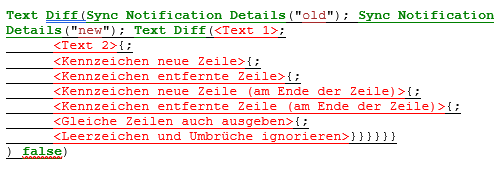
    5. To clarify the changes in the text, the above formula can be supplemented with the function "Compare texts".
      Example:
      Text Diff
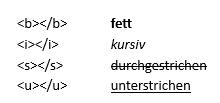
    6. The different results from the formula in word processing can also be formatted.
      Formatting options:
      Formatierung
    7. The formula including predefined styles (link) will look like this in word processing:
      Stil
  • Create a sync server

    Sync servers set the sender of the change notifications and schedule the jobs. Separate sync servers are required for different intervals and contexts.

    1. Go to the Administration Administration tab in the function bar and select Administration Settings > KalenderSync Synchronisation.
    2. neu Add a new Sync. Server and select Sync Server Notification. The sync server input field will open.
    3. Enter a unique, self-explanatory Name for the sync server.
    4. Enter unique title prefixes for notifications
      a) New -> Example "New shift"
      b) Changed -> Example "Changed shift"
      c) No longer current -> Example "Cancelled shift"
    5. Enter a Send address for emails.
    6. save Save your input by clicking on the icon in the top left-hand corner of the input window.
  • Create a sync table

    Sync tables set the framework conditions and the content of the change notification.

    1. Go to the Administration Administration tab in the function bar and select Administration Settings > KalenderSync Synchronisation.
    2. neu Add a new Sync. Table and select Sync Server Notification at xx.
      Note: The available Sync. Server will be offered for selection.
    3. Enter a unique, self-explanatory Name for the sync table or use the server name (recommended).
    4. Select the data source from the picklist.
      Note: Only data with a date or time reference are available.
    5. Assign the export list (Type: Info Centre list).
    6. Enter a time range in minutes as Export delay. This time determines how long after saving a record the change notification will be sent.
      Note: Make sure that the server, name, data source, export list and text template have the same objectives.
    7. Make the following settings:
      a) Notify responsible users / user group
      Only the Sync Server accounts of type user or user group are notified. Each user account only receives the data relevant to them.
      Example: User "Smith" only receives notifications about changes to appointments that affect them as participant or responsible.
      b) Notify staff members individually
      Only the Sync Server accounts of type "Staff member" are notified.
      Example: User "Smith" receives change notifications for their own shifts.
      c) No selection Only the sync server accounts of type "Sync server account" and "Distribution list" are notified. These can be used to notify stakeholders who are not Bp Event users.
      Example: Event changes are communicated to various departments and an external caterer.
    8. Set as the number of days before the reference date (e.g. event date) that the notification should be sent as Notification lead time.
      Example: With a lead time of 14 days, recipient will not be notified of any changes made three weeks before the event. This reduces the information load.
    9. The Max. failed attempts defines how often the notification function may fail before execution is cancelled.
    10. Select a Text template for the notification text.
    11. Select attachments in the Data sheet as email attachment field, such as updated worksheets (created as text data sheet) for an event.
    12. Tick Attach ICS files to include calendar entries in the attachment.
      Example: The event date has been postponed, an updated calendar entry is included in the email.
      Note: The form and content of the calendar entry cannot be customised.
    13. To log whether a notification has been sent in the change history of the record, tick Log to record.
      Note: Logging may generate a large amount of data and should be selected with care.
    14. Click on Discard data and reload in the event of changes, e.g. in the text template or the export list of the Info Centre type, to avoid triggering a change notification for all affected records.
      Note: All changes are reloaded (reset) without triggering change notifications. Please use with caution.
    15. Show synchronised data is used during setup or error analysis. Calls up a list of all records affected by changes and provides information on synchronisation.
    16. Show unsynchronised data lists all changes that can trigger a notification during the next synchronisation, provided they qualify for the notifications (job).
      Note: Neither the export list (Type: Info Centre list) nor the number of days for the notification are considered here.
    17. Test export list with unsynchronised data can be used for testing during setup.
  • Create a sync server account

    Sync accounts determine the recipient(s) of the change notifications.

    1. Go to the Administration Administration tab and select Administration Settings > Sync Synchronisation to create a new sync server account.
    2. Click on the expand triangle next to neuexpand Add and select Notification at xx ->
      a) Gruppen User group
      Select a user group to be notified of changes.
      Example: If a responsible user responsible needs to be notified of changes event changes, this user must be assigned to the group.
      b) Benutzer User
      c) personal Staff member
      d) Sync Server Konto Sync. Server account
      Example: The external caterer does not work with Bp Event and is notified by email about changes to the event.
      Not only the person responsible for an event or an event participant can be informed, but also other stakeholders who have no access to Bp Event.
      e) Verteilerliste Distribution list (email, internal messages)
    3. The Sync Server input window will open.
    4. Enter a unique, self-explanatory Name for the sync server.
    5. Select a Channel (email, SMS, job) from the picklist.
  • Create a job for the sync server update

    The job determines the time interval in which the changes are checked.

    1. Go to the Einrichtung Configurations tab on the function bar and select Jobexpand Jobs > neu New.
    2. Enter a unique and self-explanatory Name and Job title .
    3. Select the Type "Update Sync Server".
    4. Enter a Start time/condition .
    5. Select Execute as to execute the job with the authorisations of the selected user or group.
    6. Assign a sync server in the Sync. Server Name field.
    7. save Save your input by clicking on the icon in the top left-hand corner of the input window.

    ()

  • Hits: 161

Importing public holidays/special events

Previously, public holidays for Germany could be created annually using the Holidays/Special Events moduleM. As of version 12.1R12, public holidays can be imported across countries and in multiple languages. The public holidays are imported from an external source, OpenHolidays API https://www.openholidaysapi.org/de/, using a data maintenance list. The user can therefore still make individual decisions during import.

  • Load the scenario

    Once your database has been updated to a current version (at least 12.1p25), you can load the integrated e-invoice scenario yourself.

    1. Log in to the database as Administrator.
    2. Go to the Administration  Administration tab in the function bar and select Administrationexpand Settings > Administration  General settings > Lizenzen Licences.
    3. Tick Import public holidays from www.openholidays.org.
    4. Speichern Save your input by clicking on the icon in the top left-hand corner of the input window.
    5. Click on Actions > Load Bp scenarios now > Load without enforcing.
    6. speichern schliessenSave your input by clicking on the icon in the top left-hand corner of the input window.
  • Authorise users to import events
    1. Go to the Administration Administration tab in the function bar and select Usersexpand Users > Benutzer User Groups
    2. Open the user group ER_Import.
    3. Go to the Benutzer Users/Groups tab and neu Add the users or groups that you want to authorise for importing holidays/events in future.
    4. speichern schliessen Save and close the authorisation.
  • Import public holidays/special events
    1. Go to the Einrichtung  Configurations tab in the function bar and select Ereignis Holidays/Special Events > import  Import > Ereignis ER_Import-Feiertage.
    2. Determine which public holidays to import.
      a) Company (Multi-Companies module)M
      Example: Your corporation has sites in Germany, Belgium and Switzerland. Determine which holidays should be imported per country.
      - Which company?
      - Which language?
      Note: only if the country code is not "DE". The language is taken from the country setting mapping ISO country code (Alpha-2).
      - Which date range to import
      Note: If there are several companies with the same country setting, apply your selction to all of them by confirming the message "There are several companies in the same country. Do you want to copy the events to other companies?" by clicking Yes and ok  Confirm for the selected companies.

      b) Other country
      Note: Without the Multi-companies module, no queries will appear. The default setting is "Other country".
      Example: Your company is located close to the French border and is directly affected by French public holidays. You might want to import French public holidays (in the respective national language if necessary).
      - which language to import
      - which country to import
      - which federal state to import
      - which date range to import
      - which language to use for the name of the special event
    3. A data maintenance list will open.
      Note: Tables with a grey background are excluded from changes. If necessary, make changes in the column per federal state (white background).
    4. To exclude individual rows from the import, remove the tick in the first column.
    5. To import data, click on save Save in the top left-hand corner.
  • Hits: 221

Once your database has been updated to a current version (at least 12.1p25), you can load the integrated e-invoice scenario yourself.

  1. Log in to the database as Administrator.
  2. Go to the Administration  Administration tab in the function bar and select Administrationexpand Settings > Administration  General settings > Lizenzen Licences.
  3. Tick Import public holidays from www.openholidays.org.
  4. Speichern Save your input by clicking on the icon in the top left-hand corner of the input window.
  5. Click on Actions > Load Bp scenarios now > Load without enforcing.
  6. speichern schliessenSave your input by clicking on the icon in the top left-hand corner of the input window.
  • Hits: 354

Creating time slots

uhr Time slots are used in different areas of Bp Event, e.g. for shift scheduling or in WebApps such as WebShop or Intranet. They are defined per weekday and time and are valid throughout. Use Serie Series to restrict the validity to selected dates.
Example: Time slot "Night shift" daily from 00:00 to 04:00, time slot "Sunday" only on Sundays from 00:00 to 24:00 for shift scheduling
Time slot "Operating hours for collection" only on weekdays from 09:00 to 21:30 for the WebShop
Time slot "Weekday evening event" for the Intranet WebApp.

  • {article id="5700"}{title}{/article}
    • Hits: 168