Creating a text template

Text templates are used for prints such as mail, bulk mail, quotes, data sheets, work instructions or menu cards. They contain references to lists and database fields. Deleting or changing the linked lists or references can have major consequences. Create or change templates carefully. If you have any questions, please contact the Bp Event Hotline or your Bp Event Account manager.

Text templates can be of three different types: Datenblatt Data sheet, textverarbeitung Word processing or docSection Other. Each text template refers to exactly one table (accounts, events, etc.), can access corresponding database references and lists and is offered for selection in this context.

Depending on the type and linked table, additional information may be possible and/or required. Due to the large number of different options, only the most important ones are explained here; other details are largely self-explanatory or explained in the help text for the input fields.

  • Open a new text template

    Text templates can be created from scratch, but in many cases it is advisable to copy and adapt an existing text template with all references and lists ().

    1. Go to the Vorlagen  Templates tab and select vorlage briefexpand  Text templates > neu  New, then select the CompanyM if necessary.. The input window for the new text template will open.
    2. To assign the new text template to several CompaniesM, go tobetrieb in the toolbar of the template and tick the companies you want.
    3. Enter a self-explanatory Name and a unique Code for the template. The code can be used to quickly assign a template when creating a new mail. The name and code must be unique and cannot be used more than once. To enter more details on a template, use the Description field.
    4. Select the Group/Type of template from the expandable picklist. Searches and filters are optimised through this template type.
    5. Select the user groups for which the template should be Visible .
    6. Select Administration Show only for configuration to mark templates that are only used in the context of lists or other templates and should not be shown to users in an operational context.
    7. Select a Template typeDatenblatt Datasheet templatevorlage brief Text template ordocSection Other. Select docSection Other only for text breaks or text blocks that are only used as a part of other templates.
    8. Speichern Save your input by clicking on the icon in the top left-hand corner of the input window.
  • Define data sheet templates

    Select a Datenblatt Data sheet template to summarise data in a specific context. Data sheets are only available for a limited number of tables.

    1. Enter a filing location for data sheets related to Accounts, Items and Events, which can be edited and saved in the record, and separate subfolders with "/".
    2. The folder or subfolder will appear in the record as soon as a data sheet based on this template is drawn and opened for editing and saving in the directory.
      Example: Data sheets/AV or Data sheets/Kitchen
    3. All data sheets for other tables can be edited and exported, but not saved internally.
  • Create word processing templates

    Select a textverarbeitung  Text template for all other templates that should either be directly available to users or used indirectly in other templates.

    1. Select textverarbeitung Word processing > Briefe Mail or Briefe Bulk mail for real correspondence. Other text templates can also be used as letter or email templates, but are only offered in a special context.
      Example: a Shift offer template is only offered in the context of personal Shifts and Staff > Anfrage Shift offers , a Mail template is offered in the context of Briefe Communications > Briefe Mail/Email
    2. If necessary, enter a formula in the field Usage rule to set additional conditions for using the template.
      Example: Quote templates only up to a maximum amount
    3. The Subject can be preset or determined by a Funktion Formula. When assigning a cover letter based on a different vorlage brief Text template, the original subject is retained.
    4. If a template is marked as anE Mail  Email template, further input fields will appear for Prio normal Priority, Lesebestaetigung Read confirmation and a E Mail Anschreiben Cover letter.
    5. The E Mail Anschreiben Cover letter for the email can also be preset:
      1. Activate a E Mail Anschreiben Cover letter in the top toolbar. A new tab E Mail Anschreiben Cover letter will appear, and the text of the email will be moved to the Text als Anhang Attachments.
      2. Click on  Text als Anhang Copy to copy the text of the email into the cover letter. Alternatively, select a different vorlage brief Text template.
    6. Both Anhang Attachments and Adresse Recipients can be preset.
      1. Attach vCard Own business cards or Calendar entries by clicking the buttons above the attachment list.
      2. neu Add external import festplatte FilesDokumentenAblage Liste Documents from packagesMvorlage brief Templates or other vCard Business cards as attachments. FunctionBuilder Event sheets are available for event templates only.
      3. Automatically attach the attachments to emails each time without prompt by selecting Accept all files without prompting above the list.
  • Compose the template text

    Enter the main text of the template on the front tab.

    1. Write or paste a text from the clipboard by clicking paste (Ctrl+V).
      Note: The icon becomes active as soon as the cursor flashes in the text field and there is text in the clipboard.
    2. Click on vorlage briefexpand to insert text blocks or other ready-made templates.
    3. Format the text using the tools in the toolbar.
  • Insert references

    References are references to other fields in the database. The type of template determines which tables in the database the template can access and which database references can be inserted.

    1. In the lower toolbar of the text tab, activate Bezug References to see all database references.
    2. Click on Datenbankfeldexpand Insert database references in the toolbar to select the higher-level category of the reference.
      Example: Benutzer User > User name and signature; Bezug Extras > Current date etc.
    3. Number fields, truth values, date or time fields may need to be formatted/determined. Enter the format in the input window and confirm by clicking OK.
    4. Create recurring texts once and refer to them in text templates.
      Example: Create a standard text under Administration  Administration > Administration  Settings > dropdownVA Events > Texte  Texts > Quote text 1 and click Datenbankfeldexpand  Insert database references > Administration Administration > Quote text 1 [text] .
      Note: only the name of the reference will appear in the text template, the real text only shows in the document itself. Unhide database reference by clicking Bezug.
  • Insert images

    Images from various sources can be inserted into the mail.

    1. Bild in Verlauf Insert image in text or Bild auf Seite Insert image on page by clicking on the expand triangle next to Bildexpand Image in the toolbar.
      1. Select <attribute not present> Insert image in text if you want to link the image to a specific text passage.
      2. Select <attribute not present> Insert image on page if you want to place the image in a specific position on the page.
    2. Search for the image you want.
      1. Select import festplatte Load from hard drive if the image is stored externally. The Explorer window will open, double-click the image you want.
      2. Select zwischenablage Load from clipboard if you have previously copied an image. Alternatively, use the Ctrl+V hotkey.
      3. Select Insert image and the filing location of the image for any images filed under other database records.
      4. For images from an integrated camera, select Insert Image > scanner Integrated Camera.
    3. Bildoptimierer Optimise images for printing or filing if needed. Find further formatting options in the context menu of the image (right-click on the image).
    4. save Save your changes.
  • Swap images

    Images saved under Vorlagen Templates > Album Gallery can be replaced in the text document. Whether the image was inserted on the page or in the text flow makes no difference at this point.

    1. Select the image in the mail and right-click.
    2. Select Album Gallery > Album Replace. A list of all other images from the Gallery that have either the same category 1 or 2 will open.
    3. Left-click the new image. The format of the new image will automatically be adjusted.
    4. save Save your changes.
  • Optimise the size and resolution of the image

    The size of the image in relation to the resolution is decisive for the image quality and the required storage capacity. The higher the resolution (e.g. 300 dpi) the better the image quality and the higher the required storage capacity. The Info field shows you the current size of the image in points and the size of the file in kB.

    1. Right-click on the image and select Bildoptimierer Optimise, then enter the resolution. The default values for photo print (300dpi), standard print (150dpi) and screen (96dpi) can be overwritten.
    2. bb crop Crop the image to fit, bb rotate gu Rotate or bb flip hor Mirror as needed.
    3. Select  Retain resolution to keep the original resolution when resizing. Reducing the size improves the image quality.
    4. The option bb proportional Retain proportions is enabled by default. Disable it to change the length and width ratio of the original.
    5. Adjust Width and Height of the image in cm.
    6. Reverse changes step by step by clicking bb undo Undo.
    7.  Confirm the changes.
  • Insert lists

    Depending on the type of text template, certain lists can be integrated into the word processing document and edited.

    1. Click on Angebotgen Listeexpand  Insert lists in the toolbar to select the parent category and an existing list.
    2. Change an inserted list by right-clicking on the list name and selecting Listen Aendern  Open list.
      Note: Changes to the lists can have an impact on many text templates. Make changes carefully ().
    3. Speichern Save your input by clicking on the icon in the top left-hand corner of the input window.
  • Copy and change a text template

    If you want to apply the references of an existing text template but change the text yourself, copy the template and customise it.

    1. Go to the Vorlagen  Templates tab and select vorlage brief Text templates, then suche Search for suitable templates.
    2. Select the template in the list by left-click.
    3. Click on Kopie Copyin the horizontal toolbar.
    4. The copy of the text template will open.
    5. If necessary, change the name, attachments, type or other settings of the text template (, ).
  • Change the text of the template

    Show the database references to avoid deleting or changing them unintentionally if you only want to customise the text itself.

    1. Activate  Bezug Show 4D expressions in the toolbar to see all database references. All lists and database references are highlighted in grey and must not be changed.
    2. Only change the texts that are not highlighted in grey.
    3. Speichern Save your input by clicking on the icon in the top left-hand corner of the input window.
  • Highlight text graphically

    There are several options in the toolbar to visually highlight text that is not already specially formatted in the template.

    1. Select the text by left-clicking and holding down the mouse button, then select in the toolbar:
      1. Textmarker gelb Background colour: highlights the text with a yellow, green, red or blue background, custom colours are available.
      2. Farbe Font colour, background colour and text effects: offers further options for text formatting such as font colour and font style
    2. Copy an existing style from one word or paragraph to another:
      1. Select a word or paragraph that is already formatted.
      2. Click on the dropdown triangle next to copyFormatexpand Styles and select Copy styles.
      3. Then select the text to which the format is to be transferred and click on copyFormatexpand > zwischenablage Apply styles (text or paragraph styles as well as tab settings).
    3. save Save your changes.
  • Insert breaks
    1. To insert a line break, select a position in the text.
    2. Click on the expand triangle next to UmbruchexpandInsert break in the toolbar.
      1. Umbruch Page break
      2. Umbruch Spalten Column break (table) or
      3. Umbruch Zeile Line break.
    3. For page breaks with totals and carry-over in invoice templates, please contact your Bp Event Account manager.
  • Insert tables
    1. Open a text template or create a new template. (Creating a text template)
    2. Place the cursor in the text field at the point where you want to insert the table.
    3. Click on the expand triangle next to tabelle 32expand Table in the toolbar and specify how many rows and columns are to be inserted.
    4. Specify Cell colour, Frame andColumn width and confirm your entry by clicking OK.
      Alternatively, right-click on the table to open the context menu and make changes to the tabelle table (frame, background, spacing, add, delete, etc.) there.
    5. Label the individual rows/columns or insert database references.
  • Insert a table of contents

    Insert a table of contents into long text documents such as quotes by first selecting all the headers and then creating an index with page numbers.

    1. Select the headers in the document and right-click (context menu), then inhaltsverzeichnis Add to table of contents and assign one of five Levels. Alternatively, assign the level by clicking on inhaltsverzeichnis Table of contents in the toolbar and selecting neu ToC entry > neu Level.
      Example: Tuesday, 1 March, Wednesday, 2 March, Thursday, 3 March -> Level 1; Schedule, Rooms, Cost estimate -> Level 2
    2. All inhaltsverzeichnis eintrag ToC entries are listed under inhaltsverzeichnisexpand Table of contents and can be edited there:
      1. suche Shown in the document: The cursor jumps to the ToC entry that is highlighted in blue.
      2. edit Change text: The text is changed both in the document and in the table of contents.
      3. inhaltsverzeichnis level Change level: The entry is assigned a different level in the ToC, visible after refreshing.
      4. delete Remove: The entry is removed from the table of contents.
    3. When all texts have been selected, place the cursor at the point in the document where you want to insert the table of contents and click on inhaltsverzeichnis Table of Contents > Insert Table of Contents.
    4. Refresh the table of contents after making changes to the document by clicking on inhaltsverzeichnis Table of contents > inhaltsverzeichnis Refresh table of contents or seitennummer Refresh page numbers.
    5. The formatting of the table of contents are defined in the template. Options for individual settings can be found under inhaltsverzeichnis Table of contents > Einrichtung Settings.
    6. save Save your changes.
  • Lock the document for changes

    Use document protection to block entire documents or parts of documents from being changed. Document protection can be used in text templates (e.g. invoices), lists or mail/email.

    1. Click on the expand triangle next to lock openexpandLock in the toolbar and select lock open Document to lock the complete document and forbid editing.
    2. The icon changes to lock  and the document is now locked for changes.
    3. To release partial areas for changes, select the area and click on lock openexpand > lock open Unlock document.
      Note: Use lock open Unlock document only by users from group to authorise one specific user group to edit the document.
  • Insert sections for formatting

    Sections separate a template into different areas with different formatting.
    Example: Page 1 to 3 portrait format, page 4 landscape format, from page 5 portrait format with narrow margins etc.

    1. Select the position in the text where you want to insert a new section.
    2. Click on the expand triangle next to docSectionexpand Section in the toolbar and select neu  New section.
    3. The text is moved to a new page from the marked position and a new section break is inserted at docSectionexpand
      Note: You can Umbenennen Rename the individual sections for better readability.
    4. Keep the cursor in the text field of the section and click on docSection to edit the settings further.
    5. Select a different format (e.g. landscape format), enter settings for margins, spacing, columns etc. for this section.
      Note: The height and width of the header, footer and text can also be changed per section using the ruler at the top and left of the text.
    6. Then insert another section at a suitable point if only one specific area is to be displayed in the different format.
  • Create a new style sheet

    If you create style templates in the administration and transfer them to your templates and lists, changes (corporate identity) will only need to be applied in one place in future.

    1. Go to the Administration Administration tab in the function bar and select Administration Settings > textformat Text template.
    2. Enter a text in the text field.
      Note: this is about creating font styles, the text entered here is irrelevant, just a few letters are sufficient.
    3. Format the text using the tools in the horizontal bar. (colour, font, font size, underline, etc.)
    4. Select the text and click on the expand triangle next to StyleSheetexpand Style sheet > neu New text style sheet.
    5. Enter a unique name for the style sheet and confirm the entry by clicking on OK.
    6. Speichern Save your input by clicking on the icon in the top left-hand corner of the input window.
  • Edit style sheets

    Standard style templates are edited in the administration and can be transferred to all templates in which the text styles are used.

    1. Go to the Administration Administration tab in the function bar and select Administration Settings > textformat Text template.
    2. Enter a text in the text field.
      Note: this is about creating font styles, the text entered here is irrelevant, just a few letters are sufficient.
    3. Format the text using the tools in the horizontal bar. (colour, font, font size, underline, etc.)
    4. Click on the expand triangle next to StyleSheetexpand Style sheet and select edit Copy current settings to template, then select the style template.
    5. Confirm the message by clicking Overwrite settings.
  • Insert style sheets into text templates

    Font styles that are defined as style templates under Administration Administration > Administration Settings > textformat Text template can be used in text templates. If the style changes, it is edited in the administration and only needs to be updated in the individual templates.

    1. Open an existing text template or create a new template.
    2. To apply a style sheet, select the text, click on the expand triangle next to StyleSheetexpand Style sheet and select a suitable style sheet.
      Note: If no current style templates are available or they have been changed in the administration in the meantime, first click on StyleSheetexpand Style sheet > refresh Update standard style templates.
    3. The text is formatted according to the style sheet specifications.
    4. Repeat the process for all texts as needed.
    5. Speichern Save your input by clicking on the icon in the top left-hand corner of the input window.
  • Insert style sheets into lists

    While font styles for references (4D expressions) are adopted directly in the text template, all lists used in text templates must be formatted separately.

    1. Open the list in a text template by right-clicking on the list name and selecting Liste Aendern Open list.
    2. Go to the textformat Word processing tab in the list
    3. Select the text, click on the expand triangle next to StyleSheetexpand Style sheet and select a suitable style.
      Note: If no current style templates are available or they have been changed in the administration in the meantime, first click on StyleSheetexpand Style sheet > refresh Update standard style templates.
    4. The text is formatted according to the style sheet specifications.
      Repeat the process for all the texts in this list.
    5. save Save your input by clicking on the icon in the top left-hand corner of the input window.
  • Edit style sheets for one document

    If text styles are used in a template, changes can be made to these styles in the document without changing the template.

    1. Create a new letter, a new e-mail with a template in which different font styles are used. (Writing a mail or Writing an email)
    2. Select the text that was formatted using a font style.
    3. Format the text using the tools in the horizontal bar. (colour, font, font size, underline, etc.)
    4. Click on the expand triangle next to StyleSheetexpand Style sheet and select edit Copy current settings to template, then select the style template.
    5. Confirm the message with Overwrite settings.
  • Hits: 247

Setting up default folders in record-specific directories

There are dataset-specific directories in accounts, items, events and projects. Their folder structure can be customised or preset.

  • Set up standard folders per table

    Folder structures can be created for Adresse Accounts, artikel Items, VA Events and projekt Projects.

    1. Go to the Configurations tab and click on Added fields > Accounts.
    2. Enter the folder names in the input field Default folder in record directories. Write each folder in a new line and separate subfolders with "/".
      Example: Data sheets/kitchen
      Data sheets/Office
      Data sheets/AV
    3. save Save your input.
    4. Set up the standard folders for the other tables in the same way.
  • Pre-set the filing location for data sheets

    In data sheet templates, specify the filing location within a record-specific directory. This option is not available for other types of text templates.

    1. Go to the Vorlagen Templates tab and select vorlage brief Text templates to open a template with Type Datenblatt "Data sheet".
    2. Enter the filing location to the right of the data sheet type and separate subfolders with "/".
      Example: Data sheets/AV or Data sheets/Kitchen
    3. The folder or subfolder will appear in the record as soon as a data sheet based on this template is generated, edited and saved in the directory.
  • Hits: 339

Defining stationery

Stationery is saved in suitable text templates when the databse is first set up:

- For the print printing of textverarbeitung Text documents, stationery is created in a JPG format with 300dpi as an image in the Album Gallery .
- For sending PDFs by E Mail Email, the stationery is also saved in a PDF format in a Dokumentenablage Document package under Shared Documents .

As long as the existing files in the Album Gallery (for printing) or in the Dokumentenablage Document Package (for PDF creation) are only exchanged but continue to be used under the same name, the new stationery is automatically applied to each template.
If new files are created, the output settings must also be adjusted.

  • Replace stationery for PDF creation

    To replace stationary, it must be replaced in PDF format in the correct document package. If different layouts are intended for the first and subsequent pages of a document, BOTH PDF documents must be replaced. The previous document is then overwritten and the new document is automatically applied in the output settings.

    1. Go to the Templates  Templates tab and select Dokumentenablage  Documents > suche  Search, Filing location "Shared Documents".
    2. Double-click the "Stationery" package in the list. The package will open with a list of all the documents it contains.
    3. Select the document to be replaced (PDF), click on StyleSheetexpand > import festplatte  Reload from hard drive and select the new stationery from the local filing location.
      Note: The onsolete stationery is deleted (replaced) from the document pack.
    4. If necessary, repeat the process for a stationary with different subsequent pages.
    5. Speichern Schliessen Save and close the document package.
      Note: The new stationery is adopted in the output settings and automatically applied in all templates with this output setting.
  • Replace stationery for printing

    To replace stationary, the image in the Album Gallery must be replaced. If different layouts are intended for the first page or subsequent pages of a stationery, BOTH JPG files must be replaced. The old image is then overwritten and the new image is automatically applied in the output settings.

    1. Go to the Templates  Templates tab and select Album Gallery > suche  Search.
    2. Double-click to select a stationery file from the list.
    3. Open the context menu by right-clicking on the image and select Import. Your Explorer window will open.
    4. Search for the file and insert the new image by double-click. The new image will show in the preview.
    5. Important: ONLY import a new image but do NOT delete the gallery entry.
    6. save Save and close the image.
      Note: The new stationery is adopted in the output settings and automatically applied in the templates with these output settings.
  • Create new stationery for PDF creation

    Save stationary in a PDF format in a document package "Stationary" on the Vorlagen Templates tab under Dokumentenablage Docuemnts > External documents Shared Documents. It is extremely important to name the documents clearly as numerous different types of stationery can be stored in this document package. If different layouts are specified for the first page and subsequent pages of a document, BOTH must be stored as PDF documents.
    Important: In order for the new stationery to actually be used for creating PDF documents for sending emails, the Ausgabevorlagen output settings must also be adjusted (see below).

    1. Go to the Templates  Templates tab and select Dokumentenablage  Documents > suche  Search, Filing location "Shared Documents".
    2. Double-click the "Stationery" package in the list. The package will open with a list of all the documents it contains.
    3. To download a new stationery from the hard drive, click on neuexpand Add > import festplatte  Files. Your Explorer window will open.
    4. Search for the file and double-click to add the new stationery in PDF format to the list.
    5. To remove obsolete stationery, select the document (hold down the Ctrl key + left-click for multiple selection) and click on delete Delete in the lower toolbar.
      Important: ONLY delete the pdf PDF document, NOT the Dokumentenablage Document package.
    6. Speichern Schliessen Save and close the document package.
  • Create new stationery for printing

    Stationary for printing documents from word processing are saved in a JPG format under Templates Templates > Album Gallery. Numerous different stationery documents can be stored in the album, which is why it is extremely important to name the documents clearly. If different layouts are provided for the first page or subsequent pages of a stationery, BOTH must be stored as JPG files.
    Important: To ensure that the new stationery is actually used for printing text documents, the Ausgabevorlagen Output settings must also be adjusted (see below).

    1. Go to the icon vorlagen Templates tab and select Album  Gallery > neu New.
    2. Assign a unique name and meaningful categories for easier retrieval.
    3. Click on import image Insert image and select your data source (external or from the database).
    4. Search for a file and insert the new image by double-click. The new image will appear in the preview.
    5. Enter the image dimensions and a resolution of 300 dpi.
    6. save Save and close the image.
  • Select the output setting

    If a new stationery has been created either for PDF or for printing, this new stationery must be assigned in the corresponding output settings.

    1. Go to the Vorlagen  Templates tab and select Ausgabevorlagenexpand  Output settings > suche  Search.
    2. Double-click the output setting "Stationary" on the list.

    PDF for email dispatch

    1. Click on DokumentenAblage Listeexpand Document suche Search in the PDF area to the right of Watermark Page 1 or Watermark Subsequent pages
    2. To limit the search results, enter "Shared documents" as Filing location and confirm your entry by clicking suche Search.
    3. Select a stationery document from the list of document packages by double-click.
    4. Speichern Schliessen Save and close the output setting.

    JPG for printing text documents

    1. In the Word processing area , click to the right of Watermark Page 1 or Watermark Subsequent pages on Album expand Gallery > suche  Search.
    2. To limit the search results, enter categories if necessary and confirm your entry by clicking suche Search.
    3. Select an image from the list of gallery images by double-click.
    4. Speichern Schliessen Save and close the output setting.


  • Hits: 161

Save a layout for event sheets (obsolete)

Important note: Event sheets will no longer be supported in the future. Please use Data sheets instead - they are easier to customise, consume fewer resources and are also suitable for mobile use.
Many of our customers still use the now obsolete Bp Event event sheets for runner sheets or work orders, which are based on outdated technology.
We strongly recommend switching to the current Bp Event data sheets, which are suitable for mobile use and highly customisable.
Event sheets will be supported until at least the end of 2024 for compatibility reasons, but further developments, improvements or integration into new technologies (Bp Event Mobil) will no longer happen.

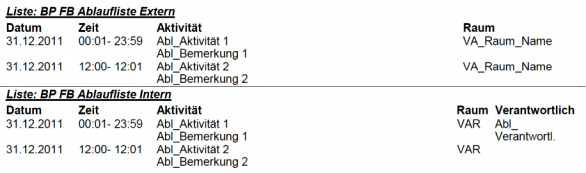
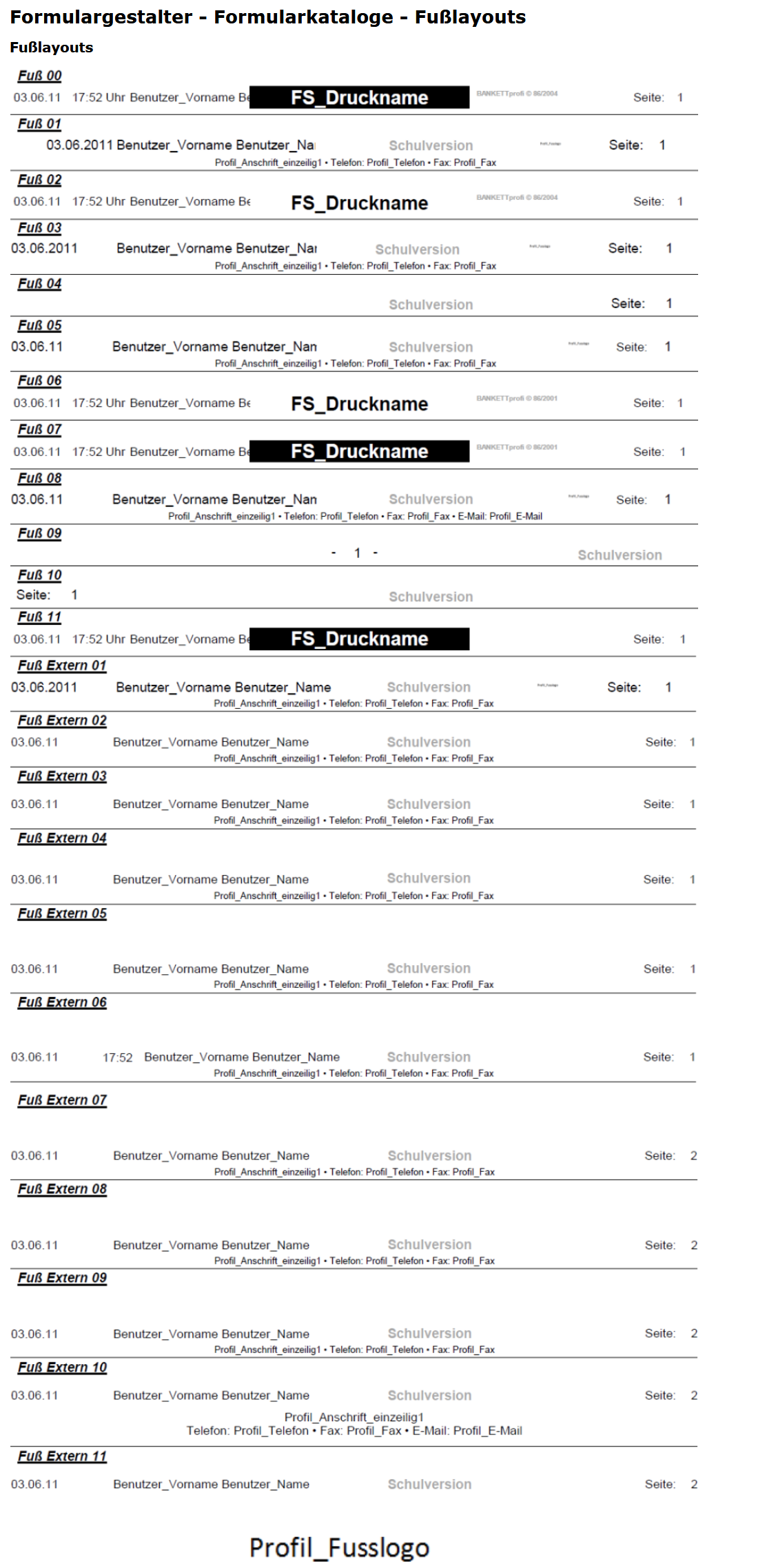
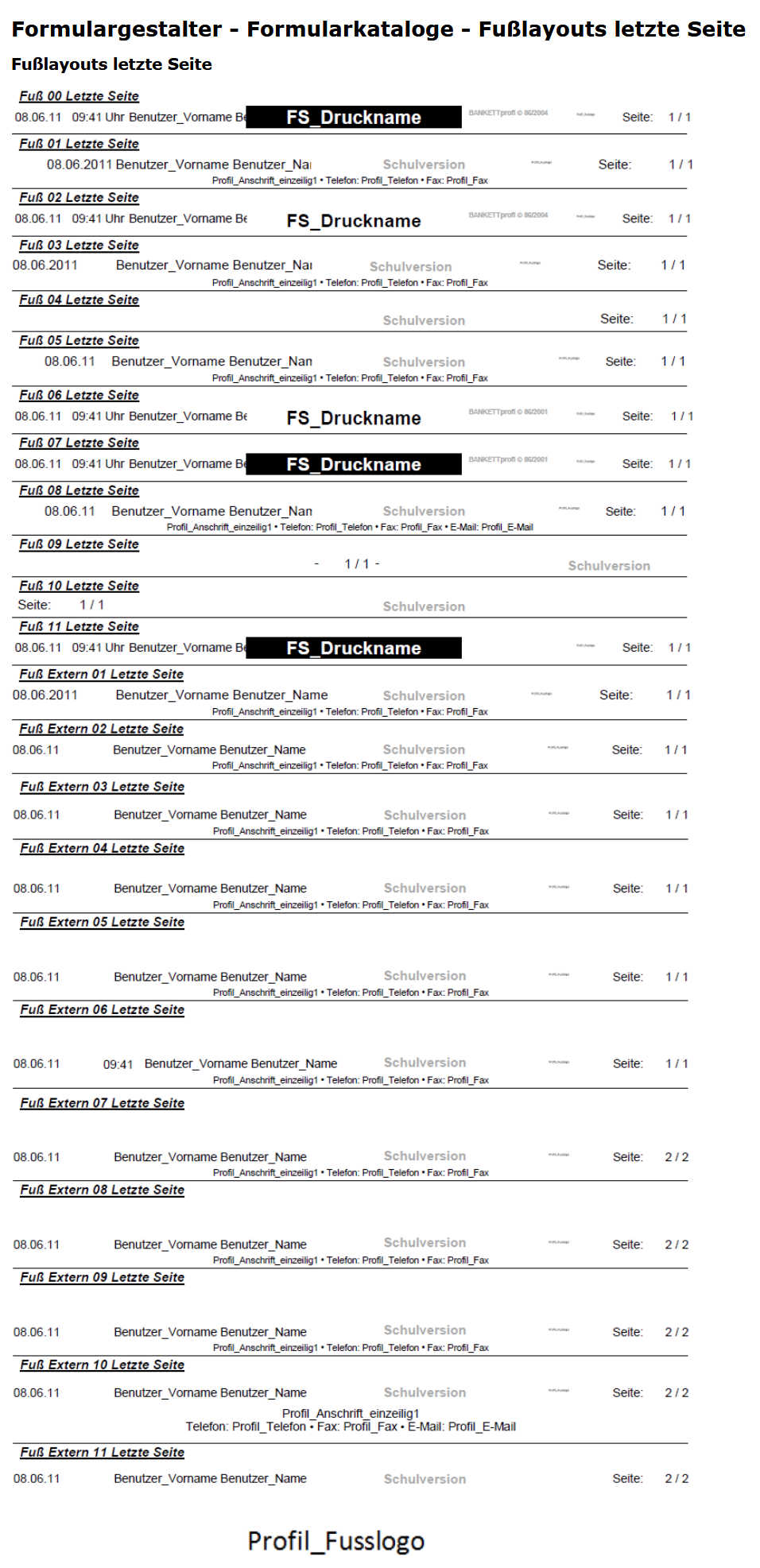
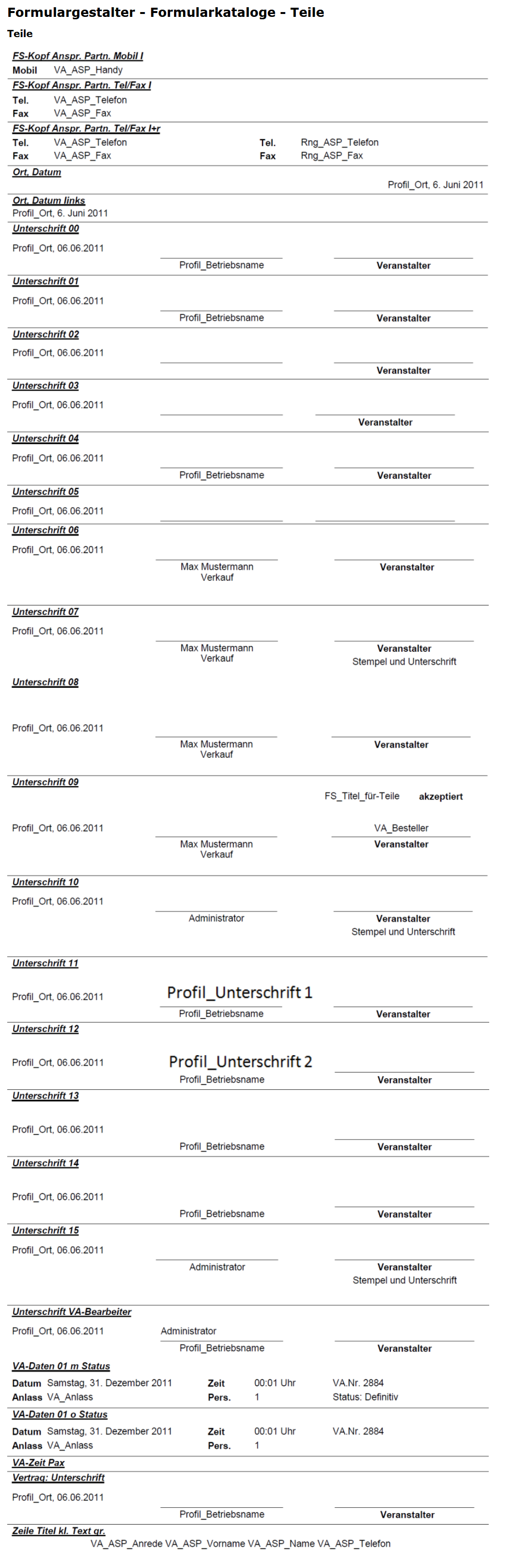
Information is structured and output based on ready-made layouts. There are differences for the header and footer layout for the first page and the following pages.

Layout Schedule


Layout Items


Layout Lists/Reports Schedule


Layout Header 1st page


Layout Header following pages


Layout Footer

Veranstaltungsblätter Fusslayout1


Layout Footer last page


Recurring and multi-day list


Elements


Tools


Booked rooms (event and event segments)


Segment header and list of segments

  • Hits: 151

Creating an event template

  • Open a new event template

    Event templates are created on the basis of existing events. Before a template can be created, the so-called "sample event" must be created and saved as a template. Either use a real, well-planned event for this or create such an event for this purpose only.

    1. Go to the Vorlagen Templates tab in the function bar and select vorlage vaexpand  Events > neu New, then select the company (if applicable).
    2. Select the Type of event from the picklist and give the template a meaningful Name. The template will be offered for selection under the name selected here when creating a new event.
      Note: Select table reservation events in the next step by assigning that Event type.
    3. Event templates can be offered as templates for complete VA Events or only for individual Vorgaenge Segments. Disable one of these options if you do not want to offer them.
    4. Some event data can, but does not have to, be copied to the template. Not all options are available for templates for table reservation events:
      a) Timesthat are copied from the template overwrite the booking times that are selected for the new event.
      b) Rooms can be preassigned; a warning is issued in the event of double bookings.
      c) The Event schedule can be copied (including segment links).
    5. Copy either all types of segments (quote, order, invoice) or only selected ones. Activate by ticking Copy segment data > Only of type to select quotes, orders or invoices for copying.
    6. Decide to copy Booked items and tick Update prices if the prices are to be updated.
    7. Entire Attendee lists can also be copied from orders.
    8. A detailed Description of the template will appear when creating a new event with a template. This detailed description with information on default settings, possible scenarios and template recommendations is very helpful, especially if there are several templates to choose from.
  • Select a master event

    Once you have specified which event template data are to be copied, select the event to be used as a template.

    1. Left-click on suche Sample event to open the event search.
    2. Select the appropriate Event type (Regular, Table Reservation, ESC or In-house) to limit the number of sample events.
    3. Search for an event and select it by double-click.
      Note: Make sure that the sample event does not have the status "completed".
    4. Specify the date to which the sample event should be saved (previous date Retain, Today, Select). The date is only used as a reference date and is not copied to the events created from the template.
    5. If necessary, make changes and save Save the sample template via .
    6. The sample event is saved under a new event number and only with the selected data.
    7. The template and its sample event can be changed at any time.
    8. Speichern Schliessen Save and close the event template.
  • Create to-do lists for event templates

    The same tasks that are always associated with certain events can already be created in the template. The to-do list is then copied from this template when new events are created.

    1. Open an vorlage va  Event Template and click on VA  Open master event.
    2. Click on Checkliste To-Do in the horizontal toolbar and create a new list of tasks (Create a new To-Do list for a record).
    3. save Save the to-do list and the event template.
  • Hits: 199

Activate standard lists

A Bp Event database comes with many standard lists. Activate the lists before using them for the first time.

  1. Go to theEinrichtung Configurations tab in the function bar and select ausgabe Lists/Reports > ausgabe Lists/Reports.
  2. Activate the field bp Standard lists only in the toolbar.
  3. Activate the lists you want by ticking the box in the first column Active.
  4. Speichern Schliessen Save your input by clicking on the icon in the top left-hand corner of the input window and close the window.
  5. The standard lists will now be available in all suitable places.
    E.g.: Search duplicate accounts; Room occupancy statistics; Sales statistics
  • Hits: 151

Setting up foreign languages, dictionaries and multilingual text templatesM

  • Create foreign languages

    Users with administrative rights can create an unlimited number of foreign languages and enable them for different areas of the application. The language specified underAdministration Administration > Administration Settings > betrieb Corporation > Administration Settings > Default language is not included here. That field defaults to German unless a different language is entered.

    1. Go to the Administration Administration tab and select Spracheexpand Languages > neu New.
    2. Enter the Name of the new language and a Code. An Alternative name is automatically pre-assigned, but can be changed and is optional. Optionally assign a Flag, which is displayed as an icon for this language.
    3. Use the Sort number to specify the order in which languages are listed. If the sort number is not unique, the languages will be sorted alphabetically.
    4. Select a Dictionary for machine translation from the picklist ().
    5. Enable language selection:
      1. For Adresse Accounts: to allow one language setting per account or contact person. If a foreign language is assigned to an account, any existing letter templates are automatically called up in this language.
      2. For artikel Items: to enable the entry of foreign-language item texts as required for multilingual text templates.
      3. For Briefe Mail/Email : to input foreign-language versions of German mail or other text templates (mail, email, quotes, menu cards, etc.).
      4. If no text templates are to be entered in this language, click on the expand expand triangle to enter a  Replacement language. Mail in this alternative language are then available for accounts assigned the new language.
        Example: "Dutch" can be assigned in an account, but no text templates are translated into Dutch. Alternatively, "English" is selected here and the customers receive English text templates.
    6. Speichern Save your input by clicking on the icon in the top left-hand corner of the input window.
  • Install Hunspell dictionaries

    A Hunspell dictionary allows users to check spelling in text fields and text templates. Due to licence regulations, this spell checker cannot be pre-installed by the manufacturer.

    1. Create a folder for the dictionary
      1. For server applications: C:\Bp Event\Bp Event Server\Application\Server Database\Resources\Hunspell
      2. For standalone applications: C:\Bp Event\Bp Event Standalone\ Application\Database\Resources\Hunspell
    2. Go to Hunspell Dictionaries German (https://www.j3e.de/hunspell/) and select the most recent file for your location.
    3. Unzip the downloaded ZIP file into the directory you have just created.
    4. Log out of the application and log in again.
    5. Go to the Administration Administration tab in the function bar and select Administration Settings > betrieb Corporation > Einrichtung Settings > Dictionary > German - Hunspell.
    6. SpeichernSave your input by clicking on the icon in the top left-hand corner of the input window.
  • Create foreign-language versions of text templates

    Create foreign-language versions of customer printouts directly in the text template.

    1. Go to the Vorlagen Templates tab in the function bar and select Briefvorlagen Text templates > suche Search .

    As of version 12.1:

    1. Click on neu Add language to open an additional tab for the foreign language template. All languages that have been created under Administration Administration > Sprache Languages and activated for Briefe Mail/Email will be available here.
    2. Enter the foreign-language text template and edit it if necessary using the woerterbuch Dictionary. If no text is entered, the tab for this language is automatically removed again when closing.
    3. Select a corresponding Briefvorlagen Text template to assign a suitable Cover letter to the letter template. If a letter is created on the basis of the multilingual template, the cover letter is automatically given out in the same language.
    4. Click on Funktion Subject based on formula to customise the subject of a multilingual mail, and enter a suitable ausgabe Formula (using the "Dictionary Translate" and "Current Language" functions).

    Versions prior to 12.1:

    1. Click on File > Save in the toolbar of the Briefe Text tab to save the template externally.
    2. Select the target language in the Language field of the template.
    3. Re-open the template by clicking on File > Open in the toolbar of the Briefe Text tab.
      Note: If you copy the original text from one language to another using Ctrl+A, Ctrl+C and Ctrl+V, the texts and database references are retained, but not the page layout.

    Speichern Save your input by clicking on the icon in the top left-hand corner of the input window.

  • Insert translations into text documents

    Translate only real text in the text templates, not database references. Item texts or other texts that originate from database references should be added to the respective items or templates (Create foreign-language item texts).

    1. Display the bezug 4D expressions in a text document to distinguish between database references and pure text (prior to Version 12.1: on the toolbar of the Briefe Text tab).
    2. A uebersetzen Dictionary matching the selected language will automatically appear in the toolbar (prior to Version 12.1: select first).
    3. Highlight the text you want to translate and click on uebersetzen Dictionary.
    4. In the field Translation text , mark the word or compound term for which you need a translation suggestion, or enter the term directly in the field Search words .
    5. Double-click to select the best of the suggested translations or enter New New translation.
    6. save Save your input by clicking on the icon in the top left-hand corner of the input window.
  • Insert dictionary references in text documents

    Translations can also be entered as references to your own dictionary. If the approved translation of an original text changes, it is not necessary to correct each translation individually, but only the entry in the dictionary. References are particularly suitable for templates, but can also be used in text documents.

    1. Show the bezug 4D expressions in a text document to distinguish between database references and pure text (prior to Version 12.1: on the toolbar of the Briefe Text tab).
    2. A uebersetzen Dictionary matching the selected language will automatically appear in the toolbar (prior to Version 12.1: select first).
    3. Highlight the text you want to translate and click on uebersetzen Dictionary > Bezuege einfuegen Replace with dictionary reference.
    4. To ensure that the translation is capitalised at the beginning of the sentence, select Bezuege einfuegen Dictionary reference (first letter upper case).
    5. save Save your input by clicking on the icon in the top left-hand corner of the input window.
  • Check the quality of dictionary references in the template

    With longer text templates, it can be difficult to ensure the quality of the automatic translations. The automatic check of entries inserted as dictionary references can help here.
    Note: Translations that have been inserted as text are not included here.

    1. Go to the Einrichtung Configurations tab and select uebersetzenexpand Translations > Monitor Check .
    2. Select which dictionary references you would like to show:
      Red  the references for which no translation was found
      Yellow the references for which only an incomplete translation was found
      Green  the references for which a one hundred per cent suitable translation has been found
      Multiple selection is possible.
    3. Only then open the text template in the correct language.
    4. In the results window, you will see the references found in the order in which they appear.
    5. Sortieren Sort the results alphabetically or zwischenablage Copy them to the clipboard for easier editing.
    6. Click on details Details to show the template or formula in which the reference appears.
    7. Correct and complete the dictionary references and call up the text template again.
  • Assign suitable attachments to foreign-language templates

    Many templates for customer correspondence are linked to attachments that are automatically sent with an email. Attachments are also useful for foreign-language emails.

    1. Create the translations of the attachment templates (Create foreign-language versions of text templates).
    2. Add both the German and foreign-language attachments to the email template on the Anhang Attachments tab:
      1. Don't set a language filter for multilingual Bp attachement templates, as they are automatically attached in the language of the account/mail.
        Example: Bp text template with translations "Quote incl net totals"
      2. For data sheets or external documents, select the languages for which they are to be attached in the Language filter column.
        E.g.: "How to find us.pdf" for the mail languages English, Dutch and Polish, "Où nous trouver.pdf" for French
      3. Picture files, business cards, calendar entries and such do not need a language filter, they are always attached.
  • Hits: 168

The size of the image in relation to the resolution is decisive for the image quality and the required storage capacity. The higher the resolution (e.g. 300 dpi) the better the image quality and the higher the required storage capacity. The Info field shows you the current size of the image in points and the size of the file in kB.

  1. Right-click on the image and select Bildoptimierer Optimise, then enter the resolution. The default values for photo print (300dpi), standard print (150dpi) and screen (96dpi) can be overwritten.
  2. bb crop Crop the image to fit, bb rotate gu Rotate or bb flip hor Mirror as needed.
  3. Select  Retain resolution to keep the original resolution when resizing. Reducing the size improves the image quality.
  4. The option bb proportional Retain proportions is enabled by default. Disable it to change the length and width ratio of the original.
  5. Adjust Width and Height of the image in cm.
  6. Reverse changes step by step by clicking bb undo Undo.
  7.  Confirm the changes.
  • Hits: 367

Changing worksheet templates

Users with the appropriate permissions can easily make changes or additions to the worksheets.
Important: If you open a template, you will only see a reference for a letter template in the text field. Do not make any changes to the reference or the preset parameters!

Complex settings are required for the worksheets. Changes to lists are overwritten with every update, with the exception of exit lists. If you have any questions, please contact your account manager or the Bp Event hotline.

  • Open the worksheet template

    Current Bp Event versions contain standard templates for worksteehts (functions) in a data sheet format.

    1. Go to the Templates  Templates tab in the function bar and select vorlage brief  Text templates > Search. Enter the Name of the worksheet or select the Type Data sheet.
    2. Confirm by clicking suche  Search.
    3. Double-click the template to open.
    4. To show or hide data in this template, go to the details  Details tab.
    5. Tick the Activate details option.
    6. Enter a unique and self-explanatory Print name for the worksheet.
    7. Decide which details to show on the worksheet.
      > cf. the following articles
  • Set event details
    1. Use the Filter for item group package to determine which item group package to filter for.
      Note: Items with other than the selected item group package will NOT be listed on the worksheet.
    2. Select a Header layout Page 1
      a) Standard
      b) Delivery note
    3. Tick the In-house days option to include days booked for internal segments in the worksheet.
    4. Tick the Currency option to add the currency code to any prices.
    5. Select a Header layout other pages if applicable.
      a) Standard
      b) Delivery note
      c) Other pages
    6. Select aFooter layout Page 1
      a) Standard
      b) Delivery note
    7. Select a Footer layout other pages (Standard or delivery note) if applicable.
    8. Tick the Footer layout other pages on last page only if applicable.
    9. Select a Segment typa if you want to show the event day for that type of segment only.
      Note: Event days with other than the selected event segment types will NOT be listed on the worksheet.
    10. Show any number of additional event details:
    • Responsible
    • Organiser
    • On-site contact
    • Guest of honour
    • Channel
    • Order address
    • Invoice address
    • Delivery address
    • Delivery info
    • Initial request
    • Agreement
    • In-house info
  • Set event room details
    1. Tick Enable rooms to list event rooms and their details in the worksheet.
    2. Tick In-house rooms to include rooms booked for internal purposes.
    3. Select a Layout for the room details from the picklist.
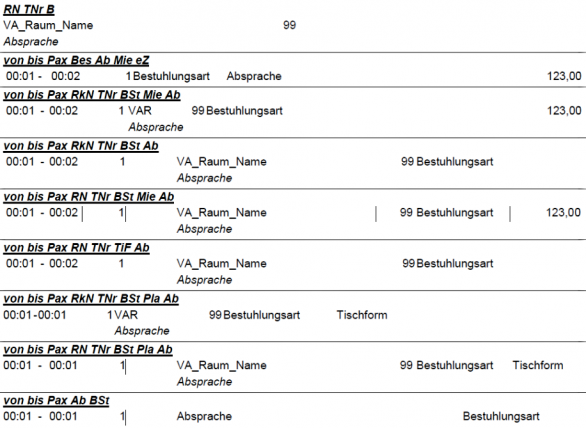
      Example: Uhrzeit_Pers_Raum_BestuAbspr for time, number of people, room, seating style and initial agreement.
  • Set event schedule details
    1. To show the event schedule and important details in the worksheets, click on Activate schedule.
    2. Decide whether internal schedule items should be included in the worksheet.
    3. Activate the Schedule text to include it in the worksheet.
    4. Select a Layout for the schedule details from the picklist.
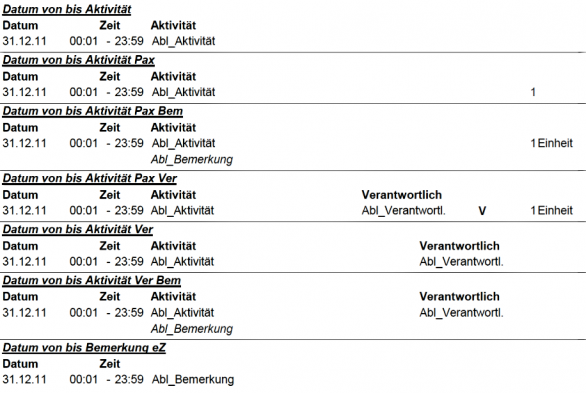
      Example: Uhrzeit_Pers_Besch_Bem for time, number of guests, description and remarks.
  • Set event segment details
    1. Filter for an Item group package, p.ex. BP_Kitchen
      Note: Only items that are assigned a corresponding item group package are listed on the worksheets.
    2. Select Filter segment type to select one type for printing worksheets
      a) nothing selected -> takes segment type quote if no order exists
      b) Order, quote -> takes segment type quote if no order exists
      c) Quote -> only takes segment type quote
      d) Order -> only takes segment type order
      e) Invoice -> only takes segment type invoice
      f) Query -> Message indicating which segment type is to be printed
    3. Show any number of added fields for event segments:
    • In-house segments
    • Calculation segments
    • Different address
    • Delivery address if different from organiser
    • Agreement
    • In-house info
    • Service notes
    • Kitchen notes
    • Audio/Visual notes
    • Decoration notes
    • Signage text
    • Cloakroom notes
  • Set segment room details
    1. To make changes to event rooms, activate the Alternative room settings.
    2. Select a layout for event rooms from the picklist.
      Example: Uhrzeit_Pers_Raum_RaumAbspr_Bestu for time, number of people, room, initial agreement and seating style.
  • Set booked item details
    1. To show booked items and their added fields in the work sheet, tick Activate items.
    2. Tick Booked items total to show the total of the listed items in the work sheet.
    3. Tick Separator texts to insert the segment name as a separator text for each segment.
    4. Tick Subtotals to show a subtotal for each segment in the work sheet.
    5. Use the Filter for item group package to determine which item group package to filter for.
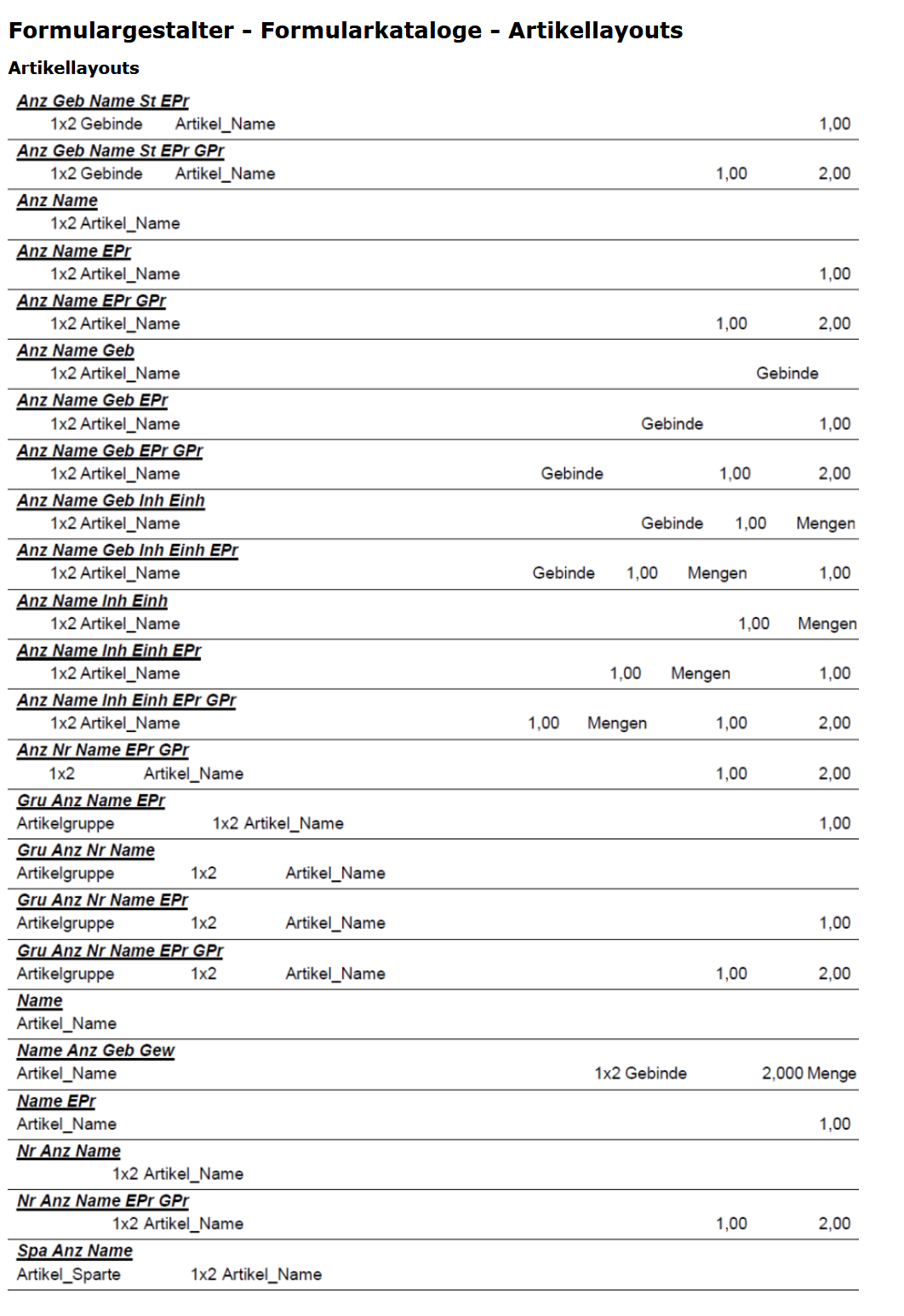
    6. Select a layout for booked items from the picklist.
      Example:  Anz_Art_GebInhEinh_EP_GP_MwSt for quantity, item, container content unit, unit price, total price and VAT rate.
    7. Select the gross/net setting and VAT from the picklist.
      a) as in the segment adopts the data from the segment without additional info gross or net
      b) Gross VAT with additional info gross
      c) Net VAT with the additional info Net
    8. In the description picklist, determine which item text to show in the worksheet.
      a) Invoice text (previous standard + supplementary text)
      b) Quote text
      c) Menu text

    Tick the following boxes to show further information on the individual booked items:

    • Supplementary text (as additional information to the invoice text)
    • Booked item remarks
    • In-house item description
    • Service notes
    • Kitchen notes
    • Allergens that must be declared
    • Additives that must be declared in foodstuffs
    • Allergens and additives (code)
  • Set reservation details
    1. To make changes to reservations, click on Activate booked items.
    2. Select a layout for reservations from the picklist.
      Example "Uhrzeit_Name_Ges_Erw_Kinder_Tisch_Bem" for time of reservation, guest name, total number, adults, children, table and comment.
  • Insert text templates

    Individual event text templates can be inserted anywhere in the worksheet by clicking Insert > Text template.

    • Text template 1 is inserted before the event added fields.
    • Text template 2 is inserted between the event details and the schedule.
    • Text template 3 is inserted between the schedule text and event segments.
    • Text template 4 is inserted between event segments and the reservation list.
    • Text template 5 is inserted between the reservation list and the table plans.
    • Text template 6 is inserted as the last text.

    Note: The position at which text template 1, text template 2 etc. are inserted is also shown in the corresponding tooltip.

  • Hits: 173