
In a memo dated 22 December 2025, the Federal Ministry of Finance specified how the all-inclusive price for combined offers (food and beverages) is to be divided.

  • In the case of combined offers with food and beverages, it is to consider the beverage portion at a flat rate of 30% of the total price
  • The remaining 70% is deemed to be the price of the food and is subject to the reduced tax rate of 7%

Example:
a) Item Wedding arrangement
b) Item beverage share of 30 % and a VAT rate of 19 %
c) Item food share of 70% and a VAT rate of 7%

We recommend the following procedure for implementation in Bp Event:


Create three items

  1. Wedding arrangement
    Create a combo item and then assign the components per VAT rate and a subtotal to this item.
    Note: Assign an item group that allows for components.
  2. Wedding arrangement food
    Create another item for the meals, enter a price and the correct VAT rate (7%) for each price group.
  3. Wedding arrangement beverages
    Create another item for the beverages, enter a price and the correct VAT rate (19%) for each price group.
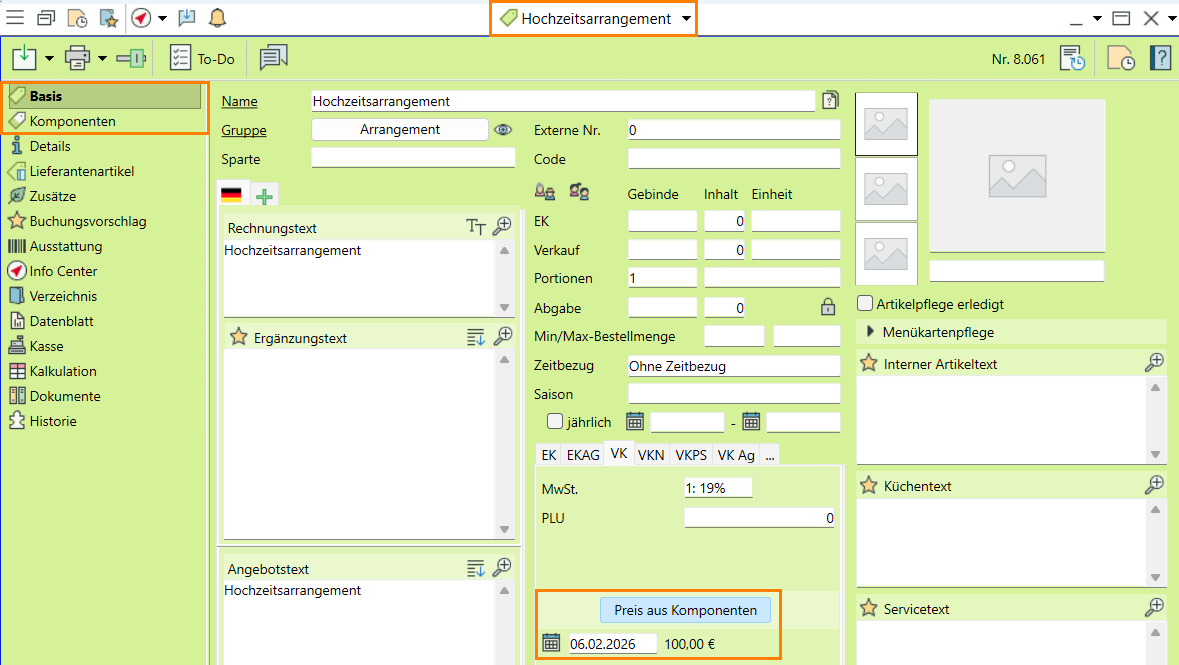
Arrangement Artikel

Read more about the topic Creating items.


Assign the components

The components b) wedding arrangement food and c) wedding arrangement beverages are stored in the item a) wedding arrangement. This item is set to be automatically expanded on booking, using the prices from components.

  1. Open item a) Wedding arrangement.
  2. Switch from the  artikel General tab to the  Komponenten Components tab.
  3. Open the item search by clicking on  neu New and add b) Wedding arrangement food and c) Wedding arrangement beverages as components.
  4. Enter "1" for each count.
  5. Check the price and enter a different price per component if necessary.
  6. neu expand  Add a Summe0  Subtotal .
  7. Select the Always expand option as Expand default in the line at the top of the input window.
  8. In item a) Wedding arrangement, switch back to the  artikel General tab  and activate the field Price from components.
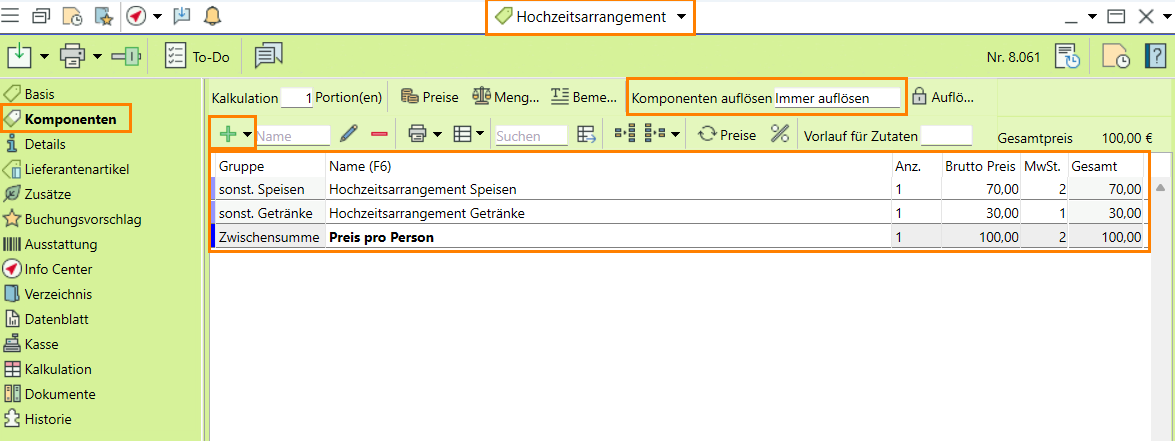
Komponenten

Read more about on Adding components


Book and edit arrangement in the segment

  1. In the event, book the item a) Wedding arrangement in the corresponding segment.
  2. The booked item is expanded to its components without any further enquiry.
    b) Wedding arrangement meals with the 7% VAT rate
    c) Wedding arrangement beverages with the 19% VAT rate
    is expanded. The subtotal from the components is also inserted.
  3. If necessary, change the price of the individual components or enter a different price in the subtotal.
    Note: The simple Summe0 Subtotal allows you to enter a different unit price and adjusts all higher item prices as a percentage.

Event-specific items allow for individual customer requests.
Read more on Event-specific items

  • Hits: 173

Update to a current version (minimum 12.2C13) in order to be able to import our tools for the changeover. Use the Automatic update or make an appointment with the Bp Event Hotline.

  • Hits: 433

After the update, you will be able to access the object catalogue and import many useful tools. For the VAT reduction, we provide a the "Changeover to reduced VAT" scenario. We strongly recommend importing all objects contained in this scenario.

  1. Go to the Configurations  Setup tab and click on  szenarienverwaltungexpand Scenarios projekt objekt Object catalogues.
  2. A list of all available scenarios will open.
  3. Open the "Changeover to reduced VAT" catalogue by double-click, or left-click and select edit Edit.
  4. The catalogue will open in nur lesen  Display mode on the Handbuch Kunden  Documentation tab.
  5. Go to the projekt objekt  Objects tab.
  6. To select all objects simultaneously (recommended procedure), click on import in the header of the first column (right-click) and select import Import in the context menu.
    Important: All objects must be selected in the first column.
  7. Click on import Import in the toolbar.
  8. Assign companies if applicable M
  9. Close the catalogue.

You can find out the purpose of the individual objects in the scenario on the Documentation tab, or by clicking on details in the line of that object.
Read more about

  • Hits: 459

The reduction in VAT does not affect your entire product range, it will only apply to food (sales items). Foods in item groups for PurchasingM or ProductionM are not included. Use a new item group package to determine which item groups in your company must be included for the VAT reduction.

    1. Go to the  AdministrationAdministration tab on the function bar and select Administration Settings > artikel Items. On the left-hand side of the window you will see the existing Item groups, on the right-hand side the existing Item group packages. Some item group packages for work instructions or text templates are already available by default.
      Note: With the Multi-Companies moduleM you will find item group packages in the Administration General settings.
    2. Click on neu Add and enter a name to create a completely new package.
      We recommend the name "VAT reduction 2026"
    3. The item groups affected by the VAT reduction are added by holding down the left mouse button (Drag-and-Drop) from the left field Item group to the right field of the new Item group package . Multi-select is possible by holding down the Ctrl key. Item groups that have been successfully added to the item group package are displayed in bold in the left-hand field.
      Note: Top-level groups that are only used for structuring are copied without their subgroups. Also copy the subgroups individually or by multi-select.
      Important: To remove item groups from the package, do not use the red minus delete , this can irrevocably delete the entire package. Use Drag-and-Drop to drag incorrect item groups from the package back into the left column of the item groups.
    4. Item groups containing items with different VAT rates must not be added to the item group package.
      Example: Item groups including food and beverages
    5. Speichern Schliessen Save your input and close the settings.
  • Hits: 471

When the scenario is updated and imported, new fields will be added to the country settings.

  1. In the function bar, go to the  Administration Administration tab and select  land Countries, then open the settings for  Sprache de Germany by double-click.
  2. Open the area Reduced VAT rate to enter the data for the VAT reduction.
  3. Add the new item group package by clicking on Artikelbestand Inventory (to the right of the item group package) > suche  Search.
  4. Select the newly created item group package "VAT reduction 2026" from the list by double-click.
  5. Enter the Start date of the VAT reduction, i.e. 1 January 2026.
  6. Enter a date in the distant future, e.g. 31 December 2099, as End date .
    Information: This field will make it easier to reset the tax reduction in the future if necessary.
  7. Enter the tax rate code (example: 1) you want to change in the field VAT rate old.
    Example: This will usually be tax rate 1.
    Note: Check any unusual setings for your company. If you use different tax rates (e.g. 3, 4 etc.), please contact your account manager before the changeover.
  8. Enter the new valid tax rate (example: 2) in the field "VAT rate new".
    Example: It will usually be tax rate 2.
    Note: Check any deviations for your company. If you use different tax rates (e.g. 3, 4), please contact your account manager before the changeover.
  9. Make a note of the Record number of the country (top right in the input window) for the next set-up step.
  10. Speichern Save and close the settings .
  • Hits: 489

The scenario contains several jobs that automatically carry out conversions for you. You only need to start one job, which will trigger the other jobs in the correct order.
Important: Be sure to select a start time outside of business hours. No records must be open for processing during the changeover.
The functions of the individual jobs, added fields and lists are explained in detail in the scenario documentation.

  1. Go to the Configurations  Setup tab and click on  szenarienverwaltungexpand Scenarios projekt objekt Object catalogues.
  2. Open the "Changeover to reduced VAT" catalogue by double-click or left-click and select edit Edit.
  3. The catalogue will open in nur lesen Display mode on the  Handbuch Kunden Documentation tab.
  4. Switch from the Handbuch Kunden  Documentation tab to the projekt objekt  Objects tab.
  5. Select the job "Transaction changeover VAT rate" and open it by clicking edit Edit in the toolbar.
  6. The field Start time/condition must be pre-set with Time .
  7. In the Execute as field, select the (real) "Administrator" from the list.
  8. Enter kalender Date and uhr Time of execution.
    Important: The date and time of execution must be outside business hours. No records must be locked during job execution.
  9. In the text field Stern Parameter presets (right above the table), check whether the number at "Variable:Country=1" matches the previously noted record number for Germany and adjust the number if necessary.
  10. Click on Aktiv Nicht in the toolbar to Aktiv activate the job.
  11. Speichern Save and close the settings.
    Note: Depending on the size of the database, the conversion may take some time due to the jobs. The next steps can only be carried out once all jobs have been successfully completed.

On the following day (after the start time), check the job log to see whether the jobs have run without errors.

  1. Go to the Configurations  Setup tab and click on  szenarienverwaltungexpand Scenarios projekt objekt Object catalogues.
  2. Open the "Changeover to reduced VAT" catalogue by double-click or left-click and select edit Edit.
  3. Switch from the Handbuch Kunden  Documentation tab to the projekt objekt  Objects tab.
  4. Select the job "Transaction changeover VAT rate" and open it by clicking edit Edit in the toolbar.
  5. Click on  Liste Verknuepft in the job toolbar to check the successful execution of all jobs.
  6. Once all jobs have been successfully completed, users can log in again.
  • Hits: 459

Maintain suggestions for VAT rates per price group and item group on the Buchhaltung  Accounting tab under Mehrwertsteuersaetze  VAT rates.. Once the scenario has been fully imported, you will have access to a data maintenance list that facilitates this process.
Note: It is necessary to maintain suggestions for VAT rates as several different tax rates can be assigned per price group. The VAT suggestion is applied when items are booked. The storage rule described in step 8 checks for this data.

  1. To enter the VAT proposals with a data maintenance list, click on the expnad triangle next to infocenterexpand Info Centre and select open Reduced VAT rate >  artikel Changeover > VAT suggestions in the quickpicks (top left of the window title).
  2. Select Sprache de  Germany by left click and ok Apply.
  3. Select one (or more price groups with the Ctrl key pressed) by left-click and ok Apply.
  4. A data maintenance list with the selected price group(s) will open.
  5. This list contains all item groups that are included in the item group package "VAT reduction 2026".
  6. The list presets all tax rates per price group and item group with the new tax rate.
  7. Check the data and make changes if necessary.
  8. Click on Speichern  Save in the horizontal toolbar to import all VAT rate suggestions.
  • Hits: 461

If you use menue cards, interfaces and WebApps, please speak to your account manager or interface expert to check if further action is needed.

a) Update menu cards and re-export per job if necessary
If you use menu cards, the tax rates are not maintained in the card, but adopted from the master items The menu cards must be updated in order to apply changes. The Bp Event Webshop is also populated from menu cards which must be updated. See 12 Update your menu cards.

b) Interfaces (e.g. Keybits, cash registers): Identify need for action with interface partners
POS and ERM systems as well as financial accounting depend on the correct exchange of data. To ensure that this works smoothly from 1 January 2026, get in touch with our Interface experts.
Use a list to check whether you are using interfaces that require verification. Click on the expand triangle next to infocenterexpand Info Center in the quickpicks and select open Reduced VAT rate > Interface Candidates.

c) Check event templates and initiate a new export by job if necessary.
Booked items in event templates are used for the Intranet WebApp and Online Booking requests (Catering, Weddings and Conferences). The VAT rate reduction in the event template is performed by a job that was triggered in step 5 of the recommended actions. Data exports for the WebApps must be restarted manually.
Example: "Populate web booking" job for the Online Booking Request.

  • Hits: 472

A storage rule that monitors the use of the correct tax rate in events and generates a warning message in the event of deviations is included in the scenario. Make the following settings if no list has yet been stored in the field "Change authorisation rule".
If a storage rule has already beenstored in this field, make an appointment with your account manager or the Bp Event Hotline for adjustments.

  1. Go to the  Einrichtung Configurations Tab in the function bar and select Tabellendetails Added fields.
  2. Open the table VA Events.
  3. In nthe top left-hand corner, click on Change authorisation rule > Liste > open Rule and the select Events save rule.
    Note: If a list is already stored in this field, ask your account manager or the Bp Event Hotline to adjust the existing list.
  4. Speichern Schliessen Save your input and close the settings.
  • Hits: 472

A job that generates a notification to a specific user or user group when new item groups are created is included in the scenario.

  1. Go to the Configurations  Configurations tab and click on  szenarienverwaltungexpand Scenarios projekt objekt Object catalogues.
  2. Open the "Changeover to reduced VAT" catalogue by double-click or left-click and select edit Edit.
  3. The catalogue will open in nur lesen Display mode on the  Handbuch Kunden Documentation tab.
  4. Switch from the Handbuch Kunden  Documentation tab to the projekt objekt  Objects tab.
  5. Select the job Monitor new item group and open it by clicking editEdit in the toolbar.
  6. The job type is preset to "Monitor data".
  7. Set the Start time/condition to "Series".
  8. Enter a date/time range in the field Seriesedit . Specify a daily execution, if necessary excluding weekends or public holidays.
    Note: The time of execution must be before midnight on the business day.
  9. Speichern Schliessen Save your input and close the settings.
  10. Set a user group to be informed about the creation of new item groups per task. In the function bar, go to the Administration Aministration tab and select Einrichtung Settings> details Added fields.
  11. Click on In the Bp event change info >  Gruppen > suche  Search to select a User group from the drop-down list.
  12. Speichern Save and close your input.
  • Hits: 458