VAT reduction for foods in 2026
The Bundestag and Bundesrat have decided to reduce VAT from 19% to 7% for foods.
Despite this last-minute decision by the government, you are well prepared with Bp Event. We provide you with tools and a recommended course of action for implementation in Bp Event. You can carry out the implementation as "real" Administrator (user). If you have any questions, please contact your account manager or Bp Event Support.
An update version has been available since Friday, 19 December 2025, in which the changeover to the new tax rates is possible directly.
Please note the following when editing events (e.g. rebooking items):
- After the changeover: Events that take place in 2025 must be adjusted manually with regard to VAT rates.
- Changeover in 2026: Events that take place in 2026 but are processed in 2025 must be adjusted manually with regard to VAT rates.
Recommendation: If you have a POS interface, it is advisable not to change over until the turn of the year so that the cash register receives the current tax rates and does not already receive the reduced tax rate during the last days of 2025.
If you have already created invoices from 1 January 2026 and sent them to your customers, you must pay attention to the VAT rate in the future if a credit note is required.
Important: Carry out the individual steps of our recommended action in sequence . Do not skip any steps and keep to the specified sequence. The steps must be carried out as the real Administrator . We expressly recommend that a user with administrative rights does not carry out the steps . Read the articles carefully before proceeding with the implementation.
- Update to the latest version
- Import the scenario from the object catalogue
Note: We recommend importing all objects in these scenarios
- Create a new item group package and assign the item groups concerned
- Check the country settings and complete them
- Start the job to convert the VAT rates
- Maintain VAT suggestions
- Check the necessary conversions for your database
Interfaces, WebApps, WebShop etc.
- Create a validation rule to check the correct VAT rates in events
- Activate the monitoring job for creating new item groups and specify the recipient or recipient group.
- Verify your revenue accounts
- Optional price adjustment of your items
- Update your menus
The jobs (automatisms) included in the scenario will change the VAT rates in all relevant instances.
Important: There is no automated adjustment of prices. Whether you pass on the VAT reduction to your customers is entirely your decision. If you would like to adjust your prices, price maintenance can be carried out as bulk operations on lists after all the previous steps have been completed. Then check any existing events and make the price changes in the event segments. Also verify changed prices in item components and event templates and adjusted if necessary. After the changeover, double-check VAT rates in the event segments and contact your account manager or the Bp Event Hotline if you have any questions.
- 1. Update to the latest version
Update to a current version, at least 12.2C13 in order to be able to import our tools for the changeover. Use the Automatic update or make an appointment with the Bp Event Hotline.
- 2. Import the scenario from the object catalogue
- 3. Create a new item group package and assign all affected item groups
- 4. Check and complete the country settings
When the scenario is updated and imported, new fields will be added to the country settings.
- In the function bar, go to the
 Administration tab and select
  Countries, then open the settings for
  Germany by double-click.
- Open the area Reduced VAT rate to enter the data for the VAT reduction.
- Add the new item group package by clicking on
 Inventory (to the right of the item group package) >
  Search.
- Select the newly created item group package "VAT reduction 2026" from the list by double-click.
- Enter the Start date of the VAT reduction, i.e. 1 January 2026.
- Enter a date in the distant future, e.g. 31 December 2099, as End date .
Information: This field will make it easier to reset the tax reduction in the future if necessary.
- Enter the tax rate code (example: 1) you want to change in the field VAT rate old.
Example: This will usually be tax rate 1.
Note: Check any unusual setings for your company. If you use different tax rates (e.g. 3, 4 etc.), please contact your account manager before the changeover.
- Enter the new valid tax rate (example: 2) in the field "VAT rate new".
Example: It will usually be tax rate 2.
Note: Check any deviations for your company. If you use different tax rates (e.g. 3, 4), please contact your account manager before the changeover.
- Make a note of the Record number of the country (top right in the input window) for the next set-up step.
 Save and close the settings .
- 5. Start a job to convert the VAT rates
- 6. Maintain VAT suggestions
- 7. Check the necessary conversions for your database
If you use menue cards, interfaces and WebApps, please speak to your account manager or interface expert to check if further action is needed.
a) Update menu cards and re-export per job if necessary
If you use menu cards, the tax rates are not maintained in the card, but adopted from the master items The menu cards must be updated in order to apply changes. The Bp Event Webshop is also populated from menu cards which must be updated. See 12 Update your menu cards.
b) Interfaces (e.g. Keybits, cash registers): Identify need for action with interface partners
POS and ERM systems as well as financial accounting depend on the correct exchange of data. To ensure that this works smoothly from 1 January 2026, get in touch with our Interface experts.
Use a list to check whether you are using interfaces that require verification. Click on the expand triangle next to 
 Info Center in the quickpicks and select
  Reduced VAT rate > Interface Candidates.
c) Check event templates and initiate a new export by job if necessary.
Booked items in event templates are used for the Intranet WebApp and Online Booking requests (Catering, Weddings and Conferences). The VAT rate reduction in the event template is performed by a job that was triggered in step 5 of the recommended actions. Data exports for the WebApps must be restarted manually.
Example: "Populate web booking" job for the Online Booking Request.
- 8. Enter a storage rule (optional)
- 9. Activate the monitoring job for creating new item groups (optional)
- 10. Check your revenue accounts
If you maintain revenue accounts in Bp Event, these must be checked and adjusted if necessary when the VAT is reduced.
- without FA interface
Revenue accounts can be maintained per price group in the item. Check the revenue accounts for your items.
Recommendation: Ask your account manager to generate a data maintenance list for you.
- with FA Interface
If you use a financial accounting interface, in most cases there are different revenue accounts for each VAT rate. When converting the VAT, check that the correct revenue accounts are addressed.
The revenue accounts can be input in several places, check all possible places in your database. Revenue accounts should only be maintained in the item under exceptional circumstances. Check whether the revenue accounts in items can be deleted and the revenue accounts can be maintained at a higher level (example: item group)
Recommended action see step Adjust item prices (optional)
Read more on Revenue accounts
- 11. Adjust item prices (optional)
- 12. Update your menu cards (optional)
- Implement 70/30 rule for item package deals (package deal, combined offer)
In a memo dated 22 December 2025, the Federal Ministry of Finance specified how the all-inclusive price for combined offers (food and beverages) is to be divided.
- In the case of combined offers with food and beverages, it is to consider the beverage portion at a flat rate of 30% of the total price
- The remaining 70% is deemed to be the price of the food and is subject to the reduced tax rate of 7%
Example:
a) Item Wedding arrangement
b) Item beverage share of 30 % and a VAT rate of 19 %
c) Item food share of 70% and a VAT rate of 7%
We recommend the following procedure for implementation in Bp Event:
Create three items
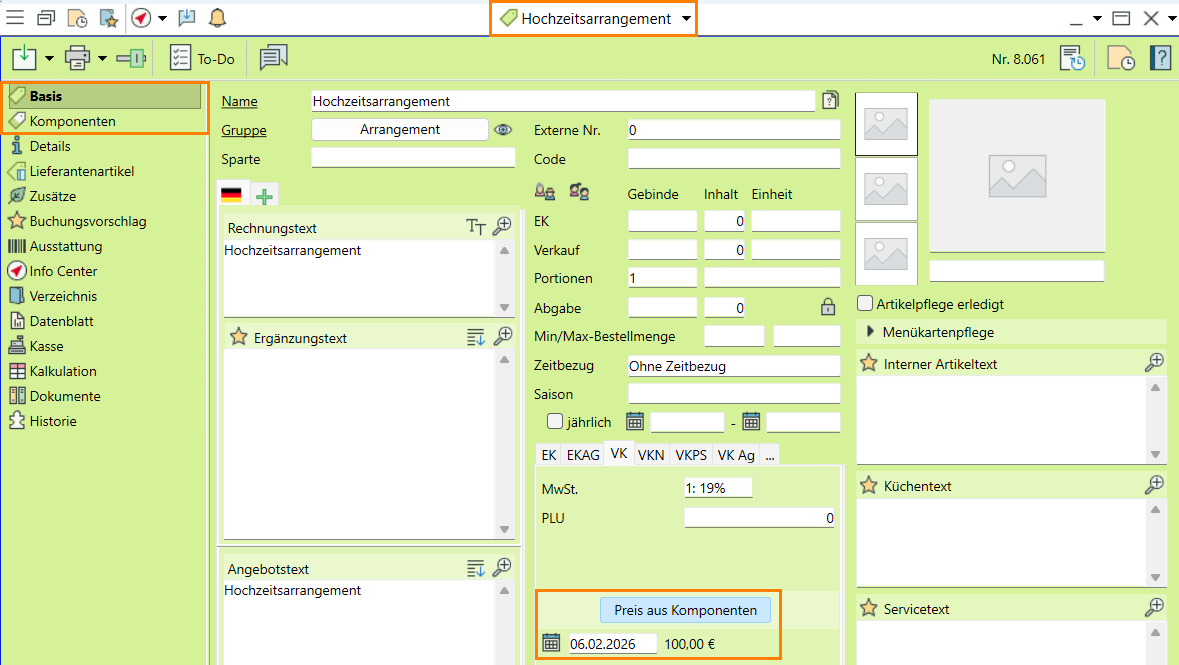
- Wedding arrangement
Create a combo item and then assign the components per VAT rate and a subtotal to this item.
Note: Assign an item group that allows for components.
- Wedding arrangement food
Create another item for the meals, enter a price and the correct VAT rate (7%) for each price group.
- Wedding arrangement beverages
Create another item for the beverages, enter a price and the correct VAT rate (19%) for each price group.
Read more about the topic Creating items.
Assign the components
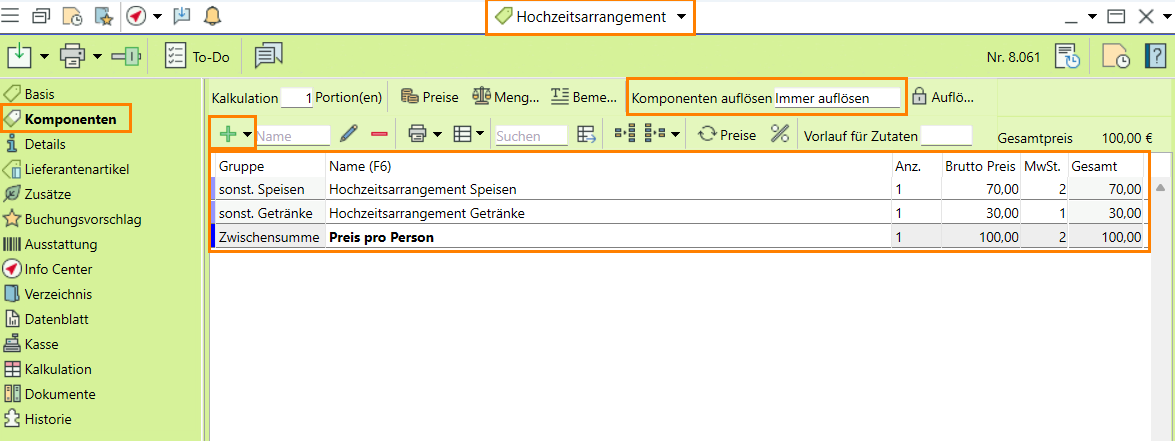
The components b) wedding arrangement food and c) wedding arrangement beverages are stored in the item a) wedding arrangement. This item is set to be automatically expanded on booking, using the prices from components.
- Open item a) Wedding arrangement.
- Switch from the
 General tab to the
  Components tab.
- Open the item search by clicking on
 New and add b) Wedding arrangement food and c) Wedding arrangement beverages as components.
- Enter "1" for each count.
- Check the price and enter a different price per component if necessary.
- Add a
 Subtotal .
- Select the Always expand option as Expand default in the line at the top of the input window.
- In item a) Wedding arrangement, switch back to the General tab and activate the field Price from components.
Read more about on Adding components
Book and edit arrangement in the segment
- In the event, book the item a) Wedding arrangement in the corresponding segment.
- The booked item is expanded to its components without any further enquiry.
b) Wedding arrangement meals with the 7% VAT rate
c) Wedding arrangement beverages with the 19% VAT rate
is expanded. The subtotal from the components is also inserted.
- If necessary, change the price of the individual components or enter a different price in the subtotal.
Note: The simple Subtotal allows you to enter a different unit price and adjusts all higher item prices as a percentage.
Event-specific items allow for individual customer requests.
Read more on Event-specific items


 Setup tab and click on
 Object catalogues.
 Edit.
Edit. Display mode on the
  Documentation tab.
 in the header of the first column (right-click) and select
  in the line of that object.
 , this can irrevocably delete the entire package. Use Drag-and-Drop to drag incorrect item groups from the package back into the left column of the item groups.
 Save your input and close the settings.
 Date and
  Time of execution.
 Parameter presets (right above the table), check whether the number at "Variable:Country=
 in the toolbar to
  activate the job.
 in the job toolbar to check the successful execution of all jobs.
 Accounting tab under
  VAT rates.. Once the scenario has been fully imported, you will have access to a data maintenance list that facilitates this process.
 Apply.
 Added fields.
 Events.
 >
>  >
>  Bulk operations >
  Home tab in the function bar and select
  Menu cards >
  Copy in the toolbar.